
01
Describe a focused change
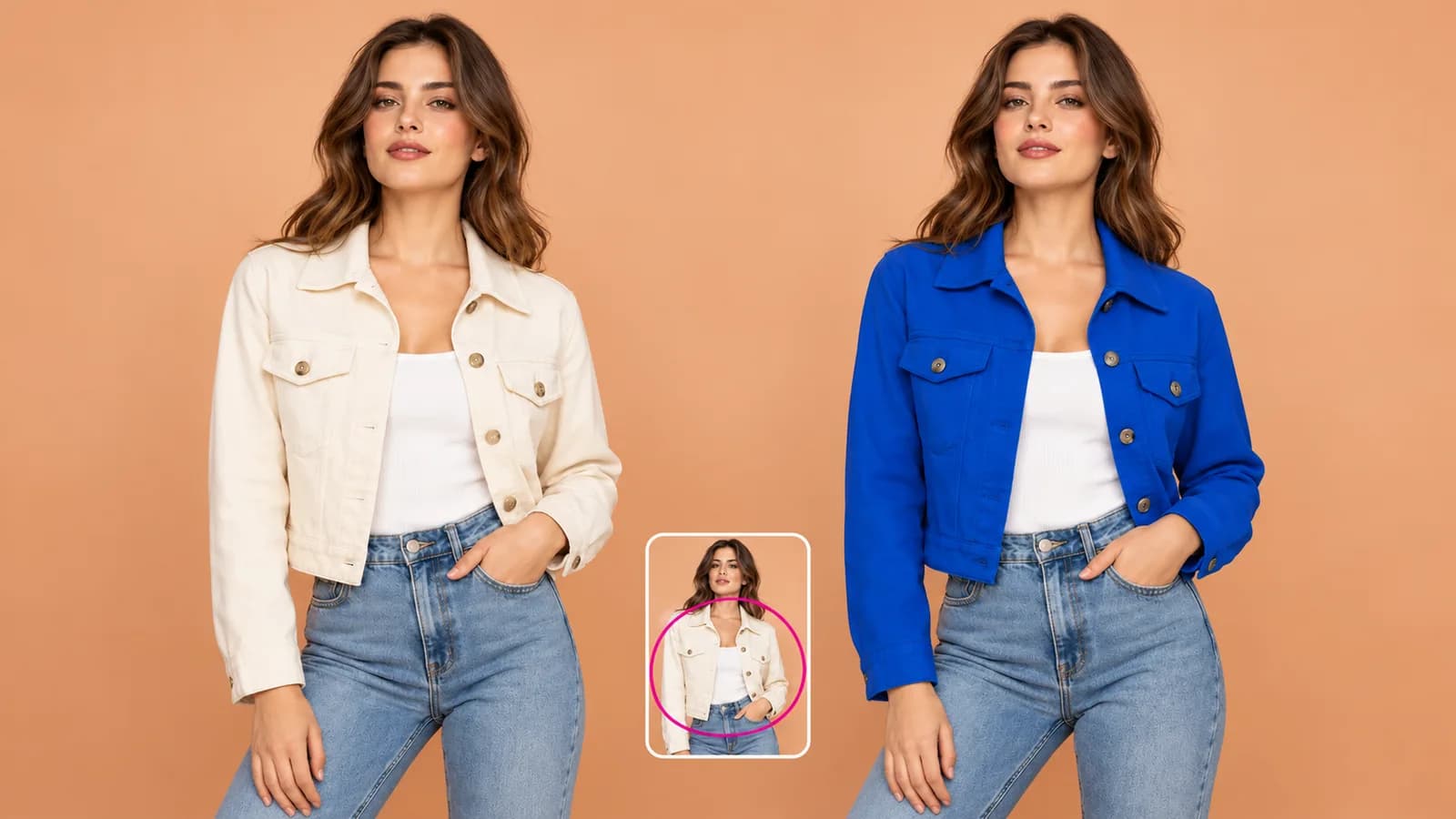
Request a new color, object or background, and specify which details to keep.
Loading AI tools
Essential cookies keep your account secure. Optional analytics and marketing cookies stay off until you choose.
Loading AI tool
Loading Edit Image
Skip to Edit ImageSTART WITH YOUR IMAGE. DIRECT THE CHANGE.
Upload a photo and describe the edit. Guide a new color, setting or visual detail with clear instructions and optional references.
Review settings and credits before you start.
START WITH YOUR IMAGE. DIRECT THE CHANGE.
Upload a photo and describe the edit. Guide a new color, setting or visual detail with clear instructions and optional references.
Review settings and credits before you start.
YOUR IDEA, MADE VISIBLE
Edit photos with text instructions and annotations. Guide changes to colors, objects or backgrounds, adding reference images where supported. Review the generated edit before downloading.
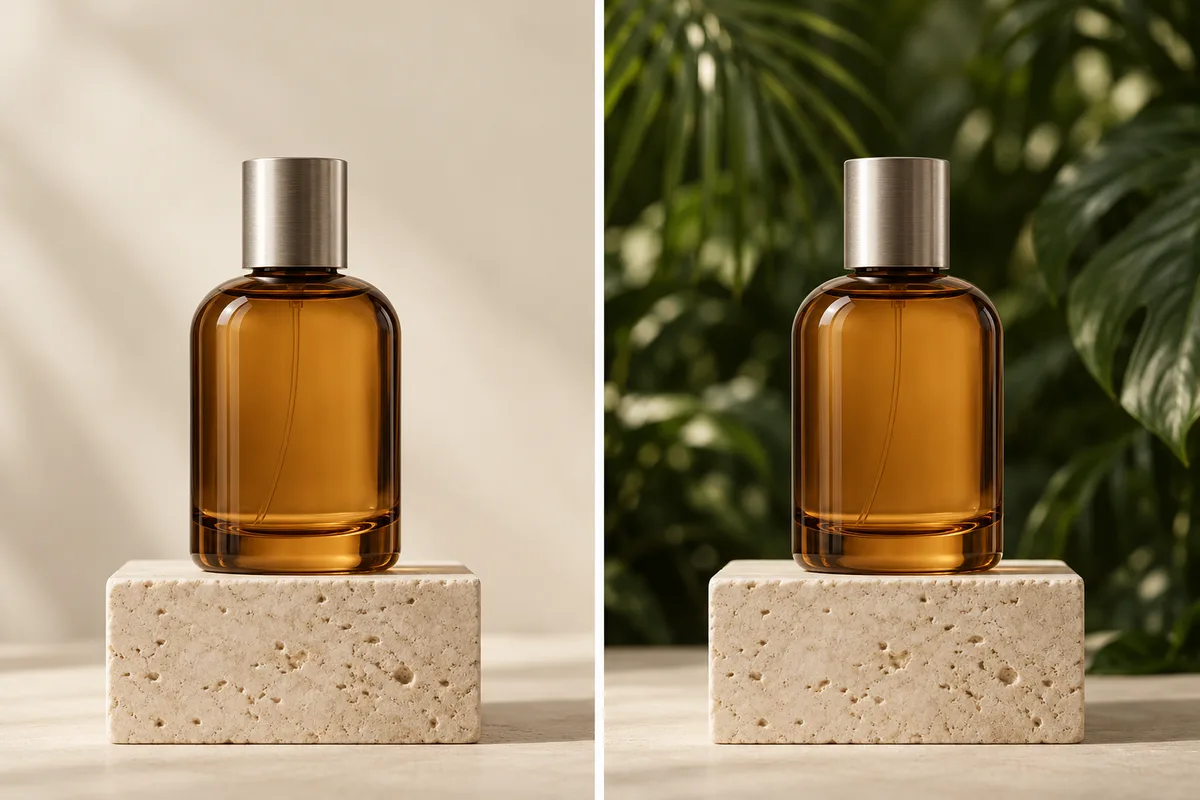
Edit idea: Replace the cream background with tropical foliage. Retain the bottle, framing and light.
Original illustration; not a verified tool result.MORE INTENTION. LESS FRICTION.
Request a new color, object or background, and specify which details to keep.
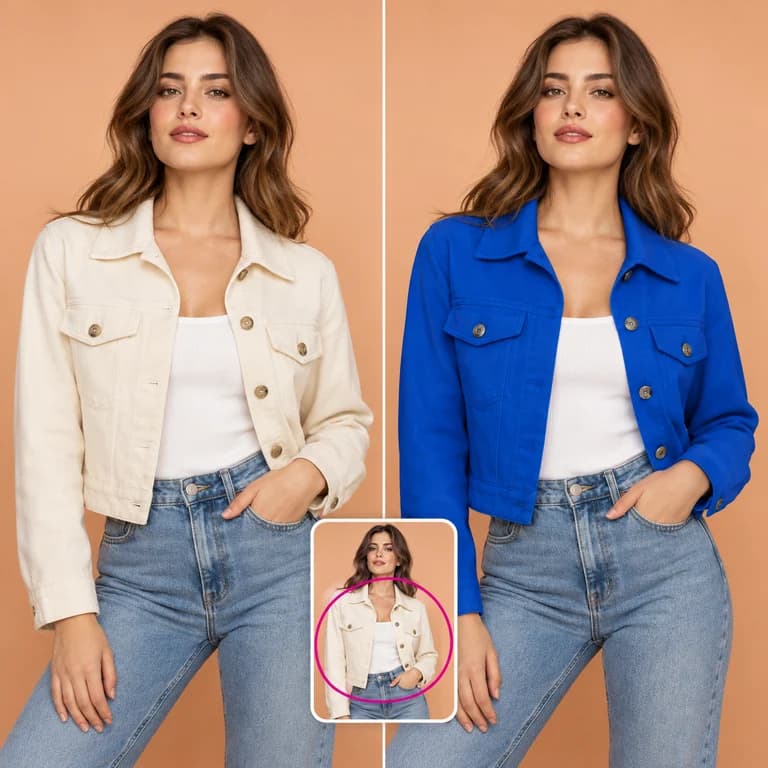
Annotate your image to show the model where and how you want a change.
Use extra images to guide a product, material or style where your model supports them.
Upload a suitable image or select one of your available images in the workspace.
Write the edit, add useful annotations and include supporting references if your model accepts them.
Check the estimate, generate and inspect the full image for both the intended change and unwanted differences.
MAKE IT PART OF YOUR PROCESS
Explore a different finish or color for a permitted product image, then inspect the generated materials and shape.
Test a wardrobe color or setting while asking the model to retain the original composition.
Adjust a scene to fit a new visual brief without starting from a blank image.
CHOOSE YOUR CREATIVE ENGINE
Choose from the current public catalog. Available inputs and output settings depend on the model.
YOUR IDEAS. ROOM TO CREATE.
Compare credits, storage and capacity. Choose your Insvee plan.
Loading current plans and regional pricing…
Edit Image credits vary by workflow and settings; check your estimate in Create. Plan output figures are approximate across tools, subject to credits and access requirements.
Full pricing detailsCREATOR VOICES
Illustrative reviews with fictional names, shown as sample content. These are not verified customer testimonials.
EDIT IMAGE FAQ
Open Edit Image, select a model and add your source image. Describe the change clearly, add annotations or supporting references if useful, then review the credit estimate before generating.
You can request a localized change and use annotations to identify it. Also describe what should remain consistent. AI editing can still alter other details, so inspect the entire output rather than assuming every unmentioned area is preserved.
Annotations provide a visual guide alongside the clean source image and your text instruction. They help explain the intended edit area or direction. They are guidance for generation, rather than a guarantee of an exact pixel boundary.
Supporting-reference availability and the number of accepted images depend on the selected model. Create shows the supported uploads and validates them before submission.
Use Edit Image for creative changes described in words. Use Remove Background when your goal is a transparent subject cutout with a dedicated erase-and-restore refinement workflow.
The jacket comparison is illustrative artwork created to explain the editing workflow. It is labelled as an illustration and is not a verified before-and-after result from an Insvee image-editing job.
YOUR IDEA. YOUR NEXT MOVE.
Start with Edit Image. Make something that feels like you.