
01
Download a transparent cutout
Isolate your subject and export a PNG for product layouts, collages or a new background.
Loading AI tools
Essential cookies keep your account secure. Optional analytics and marketing cookies stay off until you choose.
Loading AI tool
Loading Remove Background
Skip to Remove BackgroundLET THE SUBJECT TAKE THE SPOTLIGHT
Turn a photo into a transparent cutout. Review the edges, refine the mask and download a PNG for your next composition.
Review settings and credits before you start.
LET THE SUBJECT TAKE THE SPOTLIGHT
Turn a photo into a transparent cutout. Review the edges, refine the mask and download a PNG for your next composition.
Review settings and credits before you start.
YOUR IDEA, MADE VISIBLE
Remove an image background and download a transparent PNG. On eligible results, refine the cutout with erase and restore brushes before exporting a separate PNG.
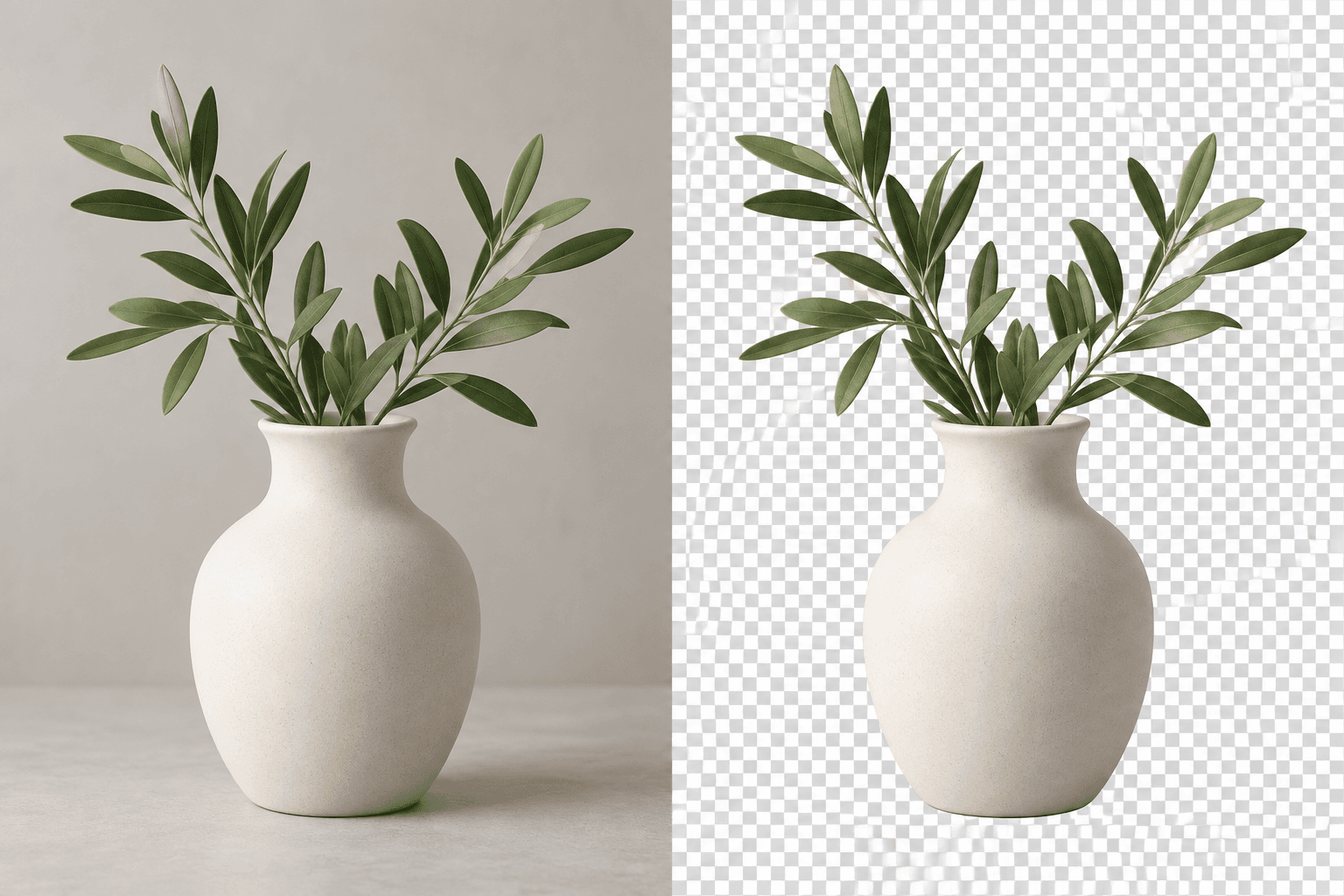
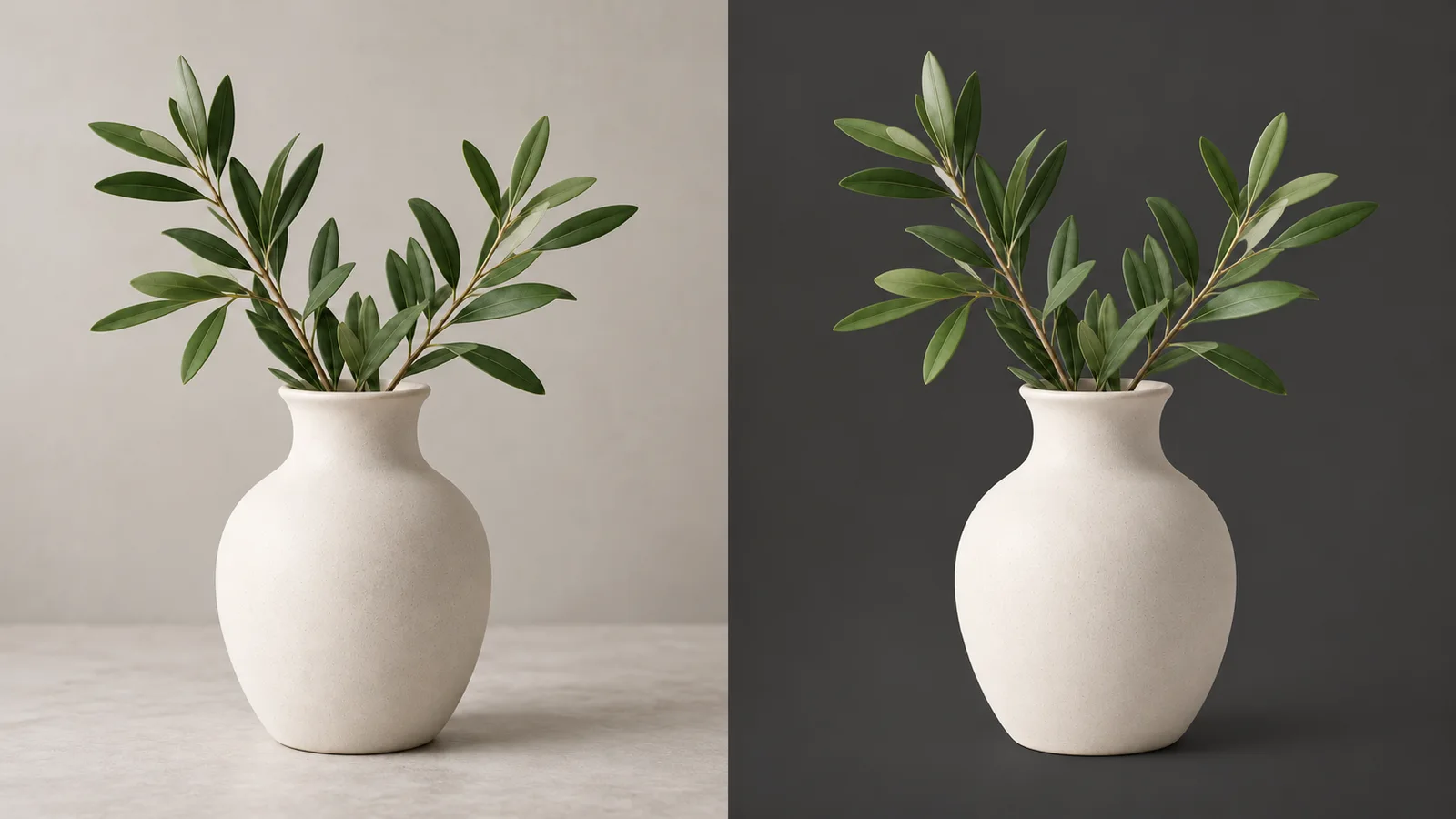
Isolate the subject, then inspect leaves, fine edges and the base before exporting a PNG.
Original illustration; not a verified tool result.MORE INTENTION. LESS FRICTION.
Isolate your subject and export a PNG for product layouts, collages or a new background.
On eligible results, brush away unwanted areas or restore missing parts of the source.
Zoom into edges, undo or reset brush edits, and export your refined PNG separately.
Choose a compatible image with the subject you want to isolate.
Check the available model and credit estimate, submit the removal and inspect the resulting cutout.
Use Refine cutout when available to erase or restore edges, then export a transparent PNG.
MAKE IT PART OF YOUR PROCESS
Prepare product images for catalog layouts, promotional graphics or new background compositions.
Isolate a person for a permitted design, collage or presentation.
Extract a visual element to place alongside text and other images in your design tool.
CHOOSE YOUR CREATIVE ENGINE
Choose from the current public catalog. Available inputs and output settings depend on the model.
YOUR IDEAS. ROOM TO CREATE.
Compare credits, storage and capacity. Choose your Insvee plan.
Loading current plans and regional pricing…
Remove Background credits vary by workflow and settings; check your estimate in Create. Plan output figures are approximate across tools, subject to credits and access requirements.
Full pricing detailsCREATOR VOICES
Illustrative reviews with fictional names, shown as sample content. These are not verified customer testimonials.
REMOVE BACKGROUND FAQ
Open Remove Background and add a compatible source image. Review the model and credit estimate, submit the task, then open the completed cutout to download or refine it.
Remove Background returns a PNG cutout with transparency. A checkerboard in the preview represents transparent areas; it is not a background printed into the downloaded PNG.
Eligible completed results offer Refine cutout. Restore brings back source areas, while Erase removes areas from the mask. Zoom and pan help you inspect details, and undo, redo and reset are available for the local brush edits.
The local Refine cutout brush editor exports a separate transparent PNG without submitting a generation or charging additional generation credits. It does not change the saved source or original generated output.
This page describes the image Remove Background workflow. It accepts an image and produces a PNG cutout. Use an available video tool for video editing; image background removal should not be treated as a video-background feature.
The vase comparison is labelled as a workflow illustration. Its source-to-cutout layout explains the intended output format; it is not presented as proof of a particular model's edge quality.
YOUR IDEA. YOUR NEXT MOVE.
Start with Remove Background. Make something that feels like you.
Remove a background