
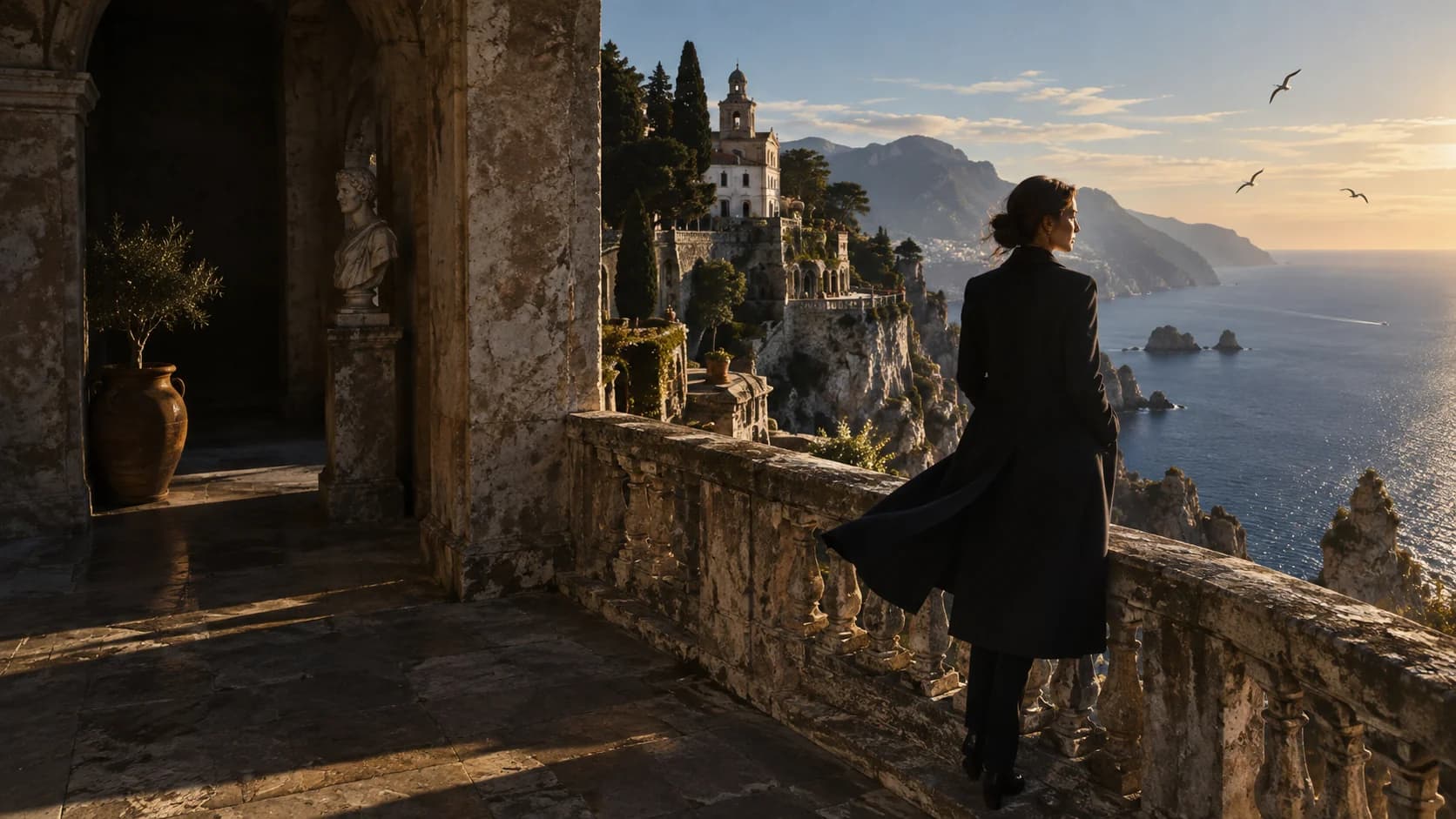
A still with
a story to tell.
Describe framing, perspective, depth of field and lighting. Explore film concepts, editorial portraits and atmospheric scene design.
Create a cinematic imageKLING AI IMAGE GENERATOR
Every image begins
with a point of view.
Turn a few words into a cinematic still. Shape your next campaign, explore a new world or reimagine an image with Kling Image 3.0 Omni on Insvee.
MORE INTENTION IN EVERY FRAME
Give your AI image a clear direction: the light, the lens, the texture and the feeling. Build your visual idea one image at a time.
Original creative references for your next visual direction. These images are not Kling-generated results.
Describe framing, perspective, depth of field and lighting. Explore film concepts, editorial portraits and atmospheric scene design.
Create a cinematic image
Add your own images to guide subjects, style and composition. Bring up to ten references into the Text to Image workflow.
Create with image references
Explore tactile surfaces, natural light and intricate scenes with 2K and 4K output. Review the available resolution and credits in Create.
Explore 4K image generationTWO WAYS INTO YOUR NEXT IMAGE
Open a supported image workflow with Kling Image 3.0 Omni already selected.
01 / TEXT TO IMAGE
Describe your subject and style. Add optional image references, choose a format and review the current estimate before generating.
Open Text to Image02 / EDIT IMAGE
Choose a source image and describe the edit. Add optional annotations or supporting references to make your direction clear.
Edit an image with OmniA LITTLE DIRECTION GOES A LONG WAY
A useful image prompt brings together a subject, a setting and a visual treatment. Be specific about what the viewer should notice.
An amber glass bottle on warm travertine.Try your own creative brief
Soft sunlight. An olive-branch shadow.
Space for the story around it.
FROM FIRST THOUGHT TO FINAL FRAME
Write a prompt for a new image, add references or open a source image to edit. Use materials you own or have permission to use.
Describe the composition and mood. Choose the available output settings and review the live credit estimate.
Start generation when you are ready. Review your image, download it or bring it into the editing workflow for your next iteration.
CREATOR VOICES
Illustrative reviews with fictional names, shown as sample content. These are not verified customer testimonials.
YOUR IDEAS. ROOM TO CREATE.
Compare credits, storage and capacity. Choose your Insvee plan.
Loading current plans and regional pricing…
Kling Image 3.0 Omni credits vary by workflow and settings; check your estimate in Create. Plan output figures are approximate across tools, subject to credits and access requirements.
Full pricing detailsKLING IMAGE 3.0 OMNI FAQ
Kling Image 3.0 Omni is Kling AI's image model for text-to-image and reference-guided visual creation. On Insvee, the catalog lists it as Kling Official Image 3.0 Omni. Use it to explore cinematic stills, product imagery, concept art and image edits.
Yes. The current Insvee integration offers 1K, 2K and 4K image output. Choose an available resolution in Create and check the current credit estimate before starting. Kling's official guide describes native 2K and 4K output.
Yes. Text to Image accepts up to ten JPG or PNG reference images alongside your prompt. References can guide subjects, visual style and composition. The available upload requirements are shown in Create; consistency and exact reproduction are not guaranteed.
Open Edit Image with Kling Image 3.0 Omni selected, choose your source image and describe the change. You can add circle, brush or text annotations and optional supporting references. The source and its annotation guide count toward the ten-image limit, leaving room for up to eight supporting references. Drawing is optional.
Text to Image currently offers 16:9, 9:16, 1:1, 4:3, 3:4, 3:2, 2:3 and 21:9, plus Auto. The Edit Image workflow preserves the source image's proportions instead of exposing an aspect-ratio selector. Check the live workflow for current options.
The current Insvee integration returns one image per generation. Kling's own platform documents an Image Series mode, but that mode is not currently available through these Insvee workflows.
The current credit estimate appears in Create after you choose your workflow, inputs and settings. Compare Insvee's live plans for included credits and capacity. Opening Create from this page carries your prompt without automatically submitting a generation or charging credits.
The opening photograph is original AI-created creative reference artwork, not a Kling Image 3.0 Omni output or an Insvee customer result. The product and architecture images are also original illustrative references. Use these concepts to plan the subject, setting and style of your own brief.
KLING IMAGE 3.0 OMNI ON INSVEE
Essential cookies keep your account secure. Optional analytics and marketing cookies stay off until you choose.