
Skip to prompt
Start creating

OPENAI AI IMAGE GENERATOR & EDITOR

GPT Image 2.5 Sunburst

Refine the details. Keep the vision.

Create and edit with OpenAI's GPT Image 2.5 Sunburst, focused on image quality and precise changes to the details that matter.

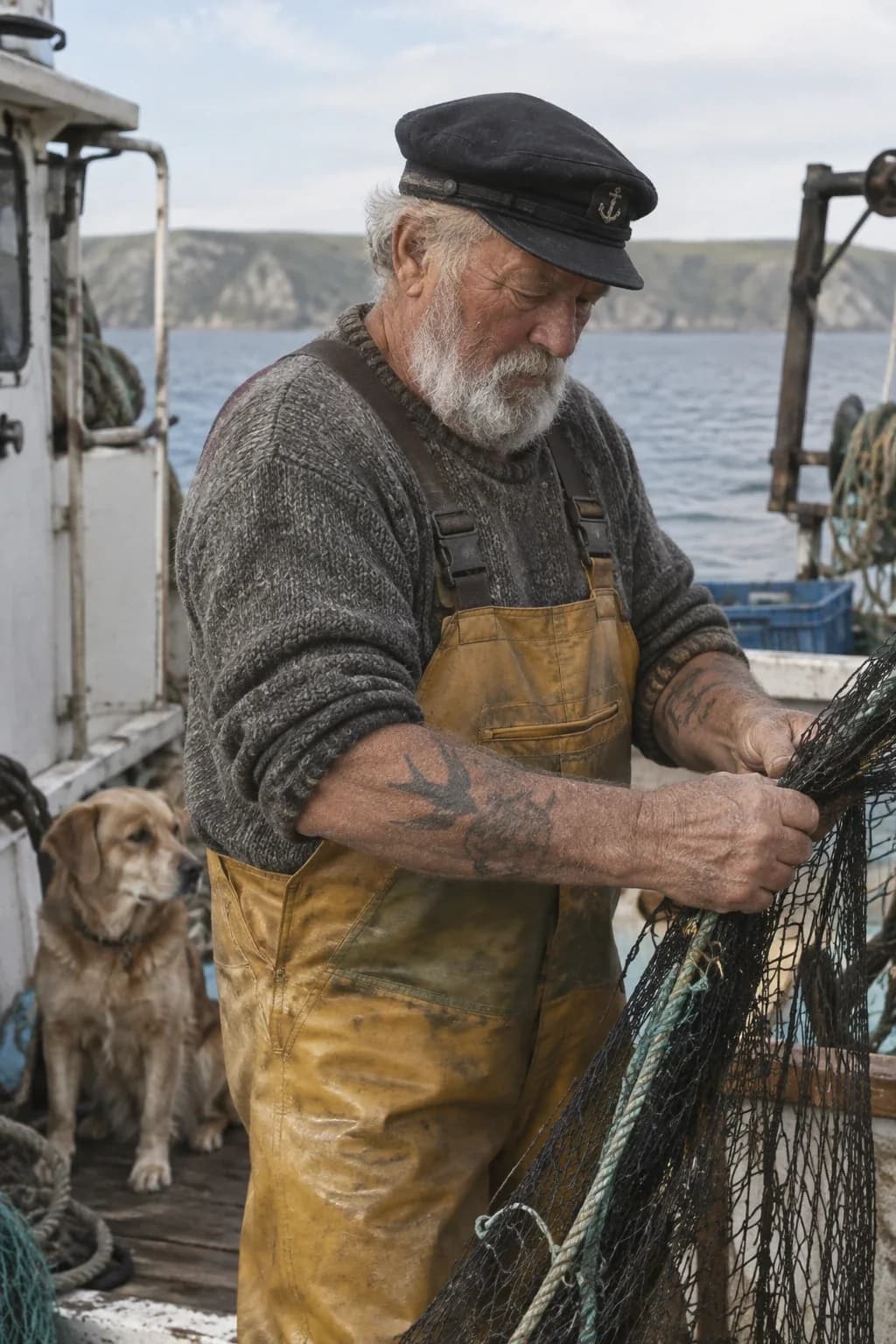
GPT Image 2.5 Sunburst outputs OpenAI
GPT Image 2.5 Sunburst
Your prompt travels with you Review credits before generating
Quality and precise editingThis model's main focus
Text to imageFrom a written creative brief
Image editingDescribe a targeted change
Creative controlChoose available settings in Create

FROM A BRIEF TO AN IMAGE

An idea worth
looking closer at.

Take a considered approach to your hero image, campaign artwork or next edit. Sunburst prioritizes image quality and precision.

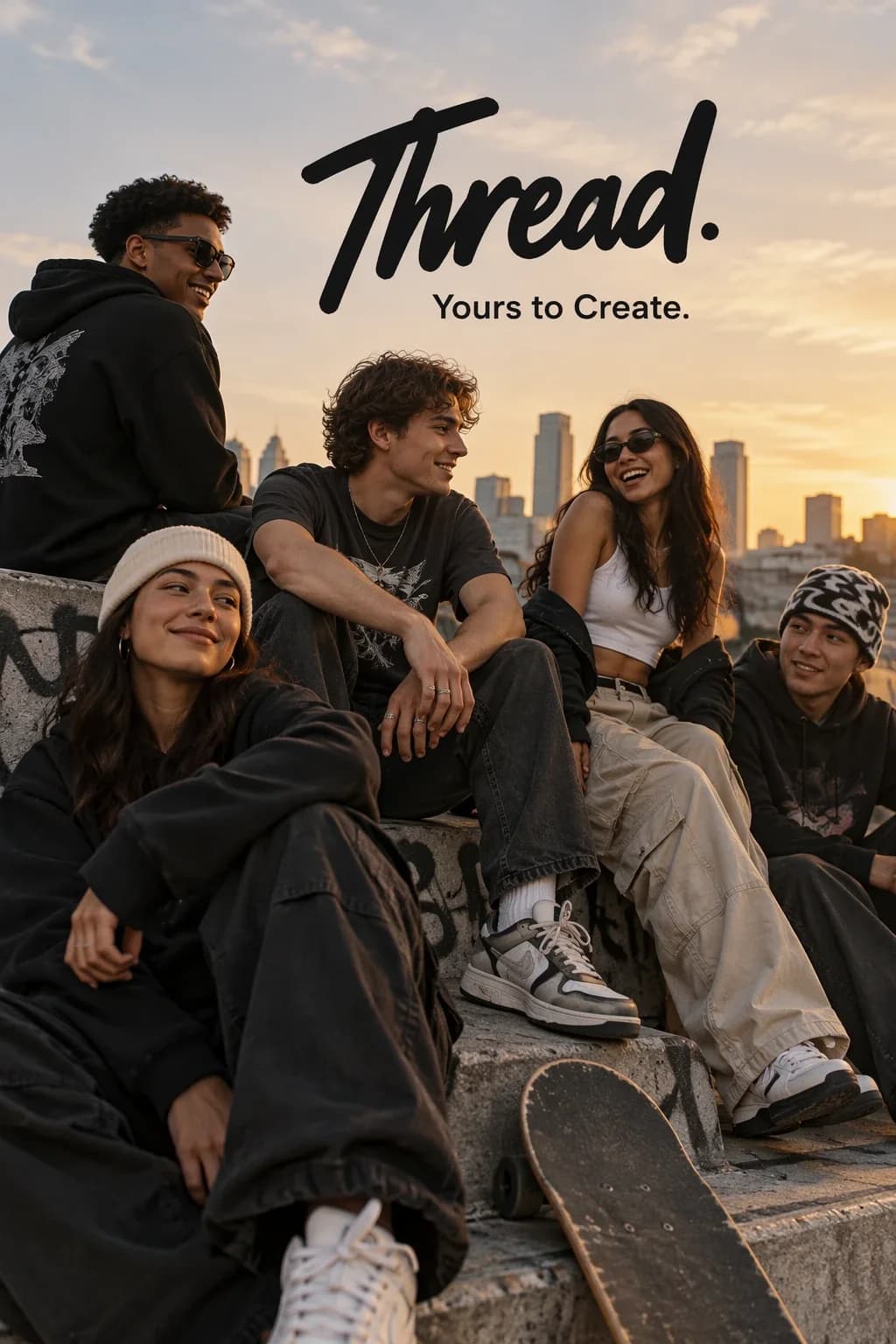
OpenAI GPT Image 2.5 Sunburst output: an editorial streetwear campaign
GPT Image 2.5 Sunburst output OpenAI

01 / CREATE AI IMAGES

Give the details their moment.

Describe the material, texture, light and composition. Build a careful visual brief for images you want to refine and review closely.

Turn your prompt into an image

Subject. Composition. Light. Style.
Give each image a clear creative direction.

02 / EDIT AN EXISTING IMAGE

A precise change. A familiar subject.

Name what should change and what should remain. Sunburst is designed for precise editing and stronger subject preservation; review each result against your reference.

THE OUTFIT REFERENCES

Show what should change.

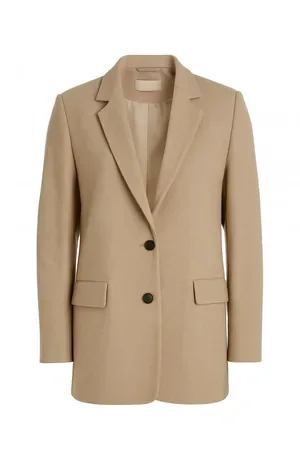
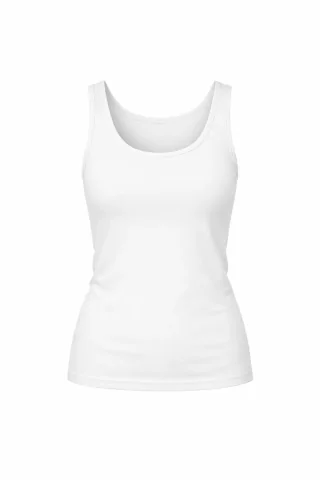
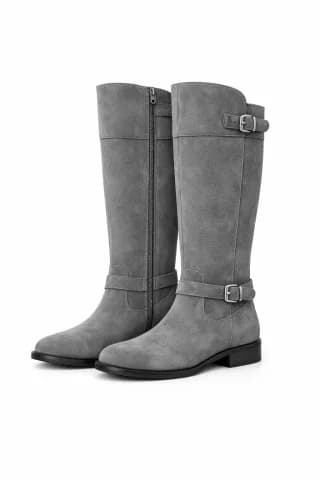
Pair the person's photo with the pieces you want them to wear. These are the clothing inputs from OpenAI's edit example.

OpenAI clothing reference input: a beige jacket
Jacket
OpenAI clothing reference input: a white tank top
Tank top
OpenAI clothing reference input: gray boots
Boots
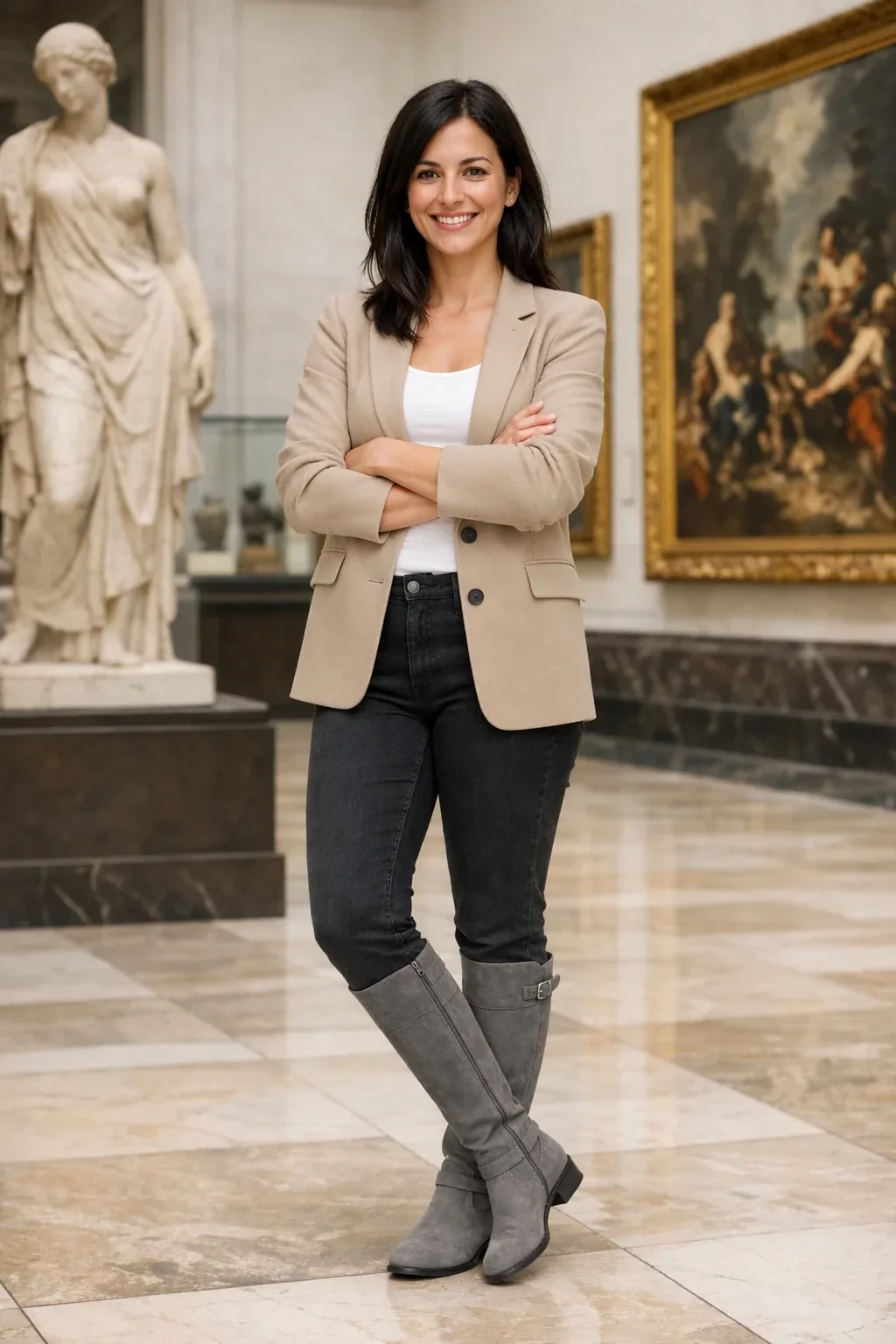
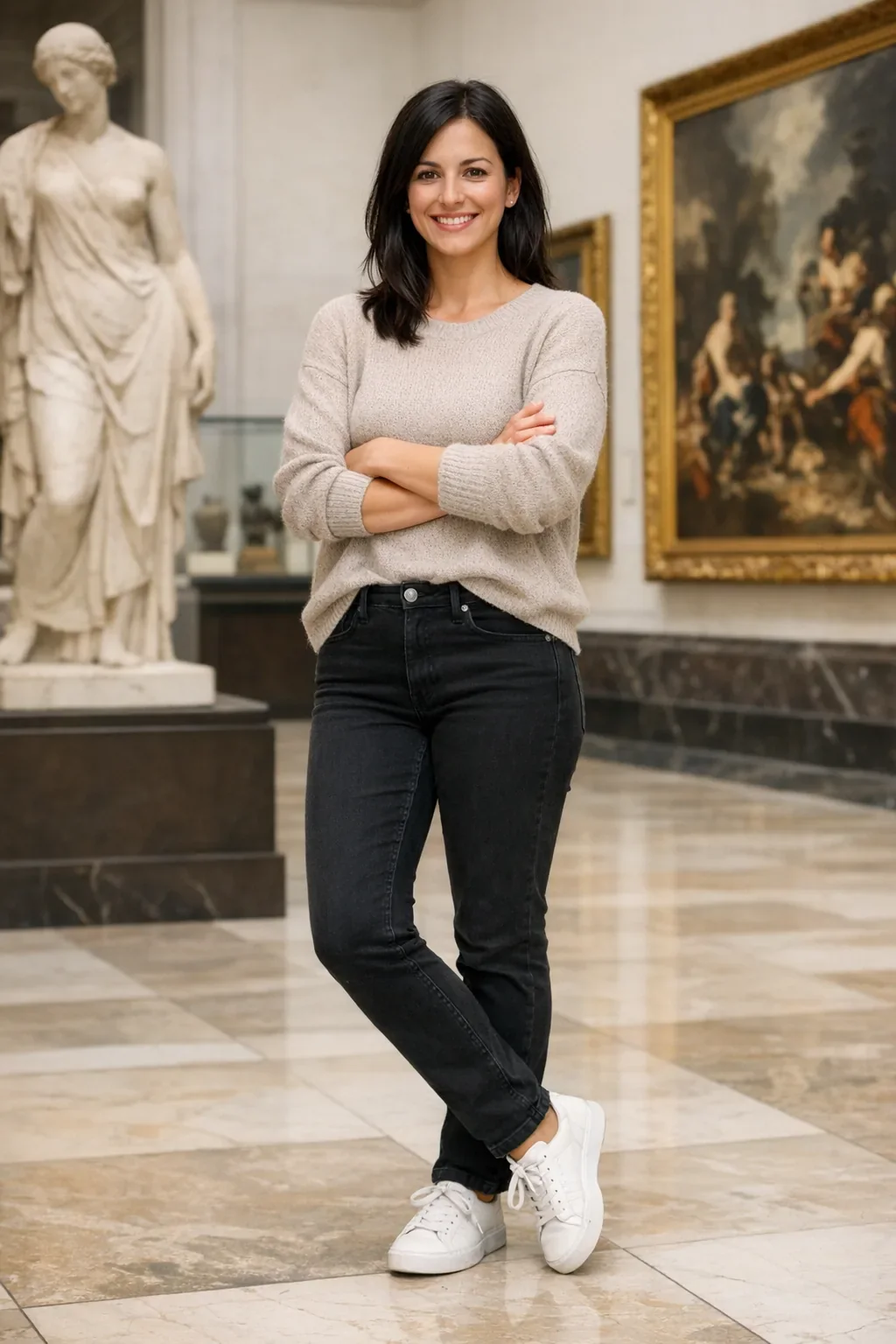
OpenAI reference image: a woman standing in a museum before an outfit editBEFORE / REFERENCE
Original reference image
OpenAI GPT Image 2.5 Sunburst output: the museum portrait after an outfit changeAFTER / GPT Image 2.5 Sunburst
GPT Image 2.5 Sunburst output

THE GPT IMAGE FAMILY

GPT Image 2 vs
2.5 Flare vs Sunburst.

Choose a model around your next task: reference-led creation, faster iteration or careful refinement.

EXPLORE THE FAMILY

GPT Image 2

Reference-led creation

Start with an image. Give it a clear creative brief. Explore a different setting, style or composition.

Start from text alone on Insvee
Reference image required
Reference-guided image editing
Supported
Discover GPT Image 2

EXPLORE THE FAMILY

GPT Image 2.5 Flare

Speed and everyday creation

Move from an idea to a visual direction, then try another. Flare is designed for fast, high-quality image generation.

Start from text alone on Insvee
Supported
Reference-guided image editing
Supported
Discover GPT Image 2.5 Flare

YOU ARE HERE

GPT Image 2.5 Sunburst

Quality and precise editing

Take a considered approach to your hero image, campaign artwork or next edit. Sunburst prioritizes image quality and precision.

Start from text alone on Insvee
Supported
Reference-guided image editing
Supported
Explore GPT Image 2.5 Sunburst

Flare prioritizes speed with image quality comparable to GPT Image 2. Sunburst prioritizes higher quality and precise editing. Actual speed, credits and available settings depend on your request.

YOUR NEXT IMAGE STARTS HERE

Create with
GPT Image 2.5 Sunburst.

From a visual brief to an image you can review and refine.

Open GPT Image 2.5 Sunburst
  1. 01

    Give your idea a brief.

    Describe the subject, composition, light and style. Mention any words you want in the image.

  2. 02

    Choose your starting point.

    Use your prompt alone or add an image reference. Choose Edit Image for a specific change to an existing image.

  3. 03

    Review. Generate. Refine.

    Check the available settings and current credit estimate. Generate, inspect the result and refine your next brief.

YOUR IDEAS. ROOM TO CREATE.

Find your creative pace.

Compare credits, storage and capacity. Choose your Insvee plan.

Loading current plans and regional pricing…

GPT Image 2.5 Sunburst credits vary by workflow and settings; check your estimate in Create. Plan output figures are approximate across tools, subject to credits and access requirements.

Full pricing details

A LITTLE MORE CLARITY

GPT Image 2.5 Sunburst
questions, answered.

What is GPT Image 2.5 Sunburst?

GPT Image 2.5 Sunburst is an OpenAI image model for creating and editing images. On Insvee, use it for visual concepts, product imagery, portraits and reference-guided edits. Take a considered approach to your hero image, campaign artwork or next edit. Sunburst prioritizes image quality and precision.

Can I generate an image from text alone with GPT Image 2.5 Sunburst?

Yes. Insvee's current integration supports text-only generation as well as generation with image references. Enter your brief, choose the available settings and review the credit estimate in Create.

What is the difference between GPT Image 2, Flare and Sunburst?

OpenAI positions Sunburst above GPT Image 2 for image quality, with stronger precise editing and subject preservation. Flare is the speed-focused alternative for everyday generation. Both 2.5 variants accept text-only prompts on Insvee.

Can I edit an existing image with GPT Image 2.5 Sunburst?

Yes. Open Edit Image with this model, choose your source image and describe the changes. Add supporting references when useful. State which subject details, colors or composition should remain, then review the result; preservation is not guaranteed.

Which image sizes and quality settings can I choose?

Create shows the current model-supported resolution, framing and quality options. Availability depends on the selected model and workflow. Check the displayed settings and credit estimate before generating.

How much does GPT Image 2.5 Sunburst cost on Insvee?

Credits depend on the selected model and settings. Compare live Insvee plans below and check your current generation estimate in Create. Sending a prompt from this page into Create starts no generation and spends no credits.

Are the example images generated with this exact model?

The showcase and edit results are OpenAI's published examples for GPT Image 2.5 Sunburst. Before images and clothing images are reference inputs. These examples were not generated on Insvee and do not guarantee identical results.

How do I write a useful GPT Image 2.5 Sunburst prompt?

Describe the subject, intended use, composition, lighting and style. Put any required words in quotation marks. For edits, say what to change and what to preserve. Inspect text, faces and fine details before using the final image.

CREATOR VOICES

Small teams.
Big ideas.

Illustrative reviews with fictional names, shown as sample content. These are not verified customer testimonials.

Swipe or drag to explore more reviews

MAKE SPACE FOR YOUR NEXT IDEA

Picture it.
Start creating.

Your brief, ready in the right workspace.

Create with GPT Image 2.5 Sunburst

Essential cookies keep your account secure. Optional analytics and marketing cookies stay off until you choose.