
01
Begin with your composition
Set the subject, framing and opening visual direction with your starting image.
Loading AI tools
Essential cookies keep your account secure. Optional analytics and marketing cookies stay off until you choose.
Loading AI tool
Loading Start/End Frame
Skip to Start/End FrameSET THE FIRST FRAME. GUIDE WHAT COMES NEXT.
Start with an image, add an ending frame where supported and describe the movement that connects your visual direction.
Review settings and credits before you start.
SET THE FIRST FRAME. GUIDE WHAT COMES NEXT.
Start with an image, add an ending frame where supported and describe the movement that connects your visual direction.
Review settings and credits before you start.
YOUR IDEA, MADE VISIBLE
Create an AI video from a starting image and, where supported, an optional end frame. Add action or camera direction to guide the transition between your images.
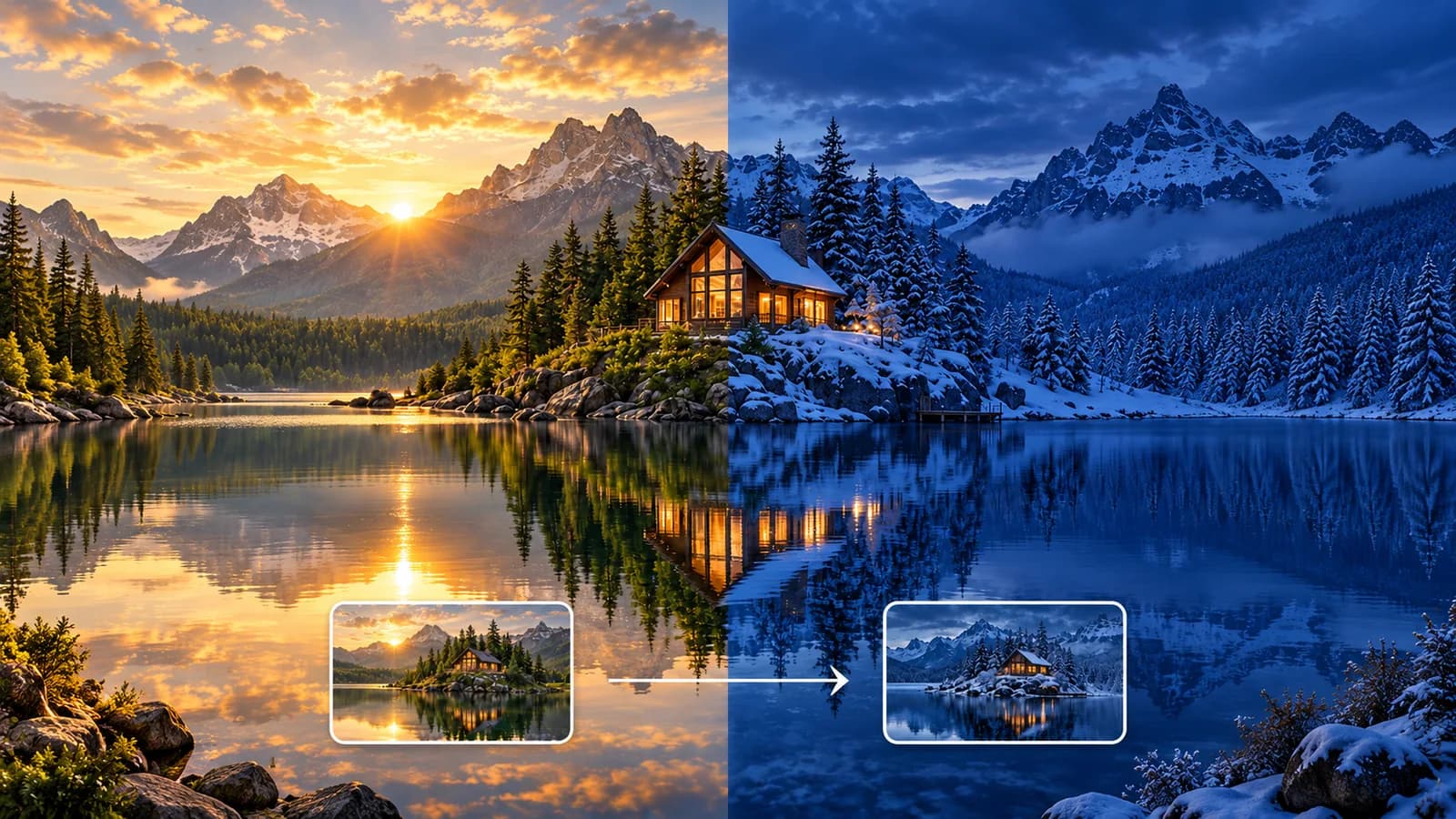
A real two-frame coffee shot using the displayed start and end inputs. Eight-second setting, 720p, audio on. Cabin artwork is a separate workflow illustration.
MORE INTENTION. LESS FRICTION.
Set the subject, framing and opening visual direction with your starting image.
Add a related ending image where supported to guide the final composition.
Add action and camera direction where supported, then choose your model's duration and output settings.
Choose a clear, permitted image with the composition you want to animate.
Add an optional end frame where supported, write a useful motion prompt and review the model's settings.
Review credits, generate and inspect the movement, subject and transition through the complete clip.
MAKE IT PART OF YOUR PROCESS
Move from a close product view toward a wider composition with a related pair of images.
Animate an opening image into a short shot with a defined visual destination.
Explore a scene change or camera progression between permitted frame references.
CHOOSE YOUR CREATIVE ENGINE
Choose from the current public catalog. Available inputs and output settings depend on the model.
YOUR IDEAS. ROOM TO CREATE.
Compare credits, storage and capacity. Choose your Insvee plan.
Loading current plans and regional pricing…
Start/End Frame credits vary by workflow and settings; check your estimate in Create. Plan output figures are approximate across tools, subject to credits and access requirements.
Full pricing detailsCREATOR VOICES
Illustrative reviews with fictional names, shown as sample content. These are not verified customer testimonials.
START/END FRAME FAQ
Open Start/End Frame, choose an available model and add a starting image. Add an optional ending image where supported and describe the movement if the form includes a prompt. Review the estimate before generating.
Start/End Frame begins with a starting image. Compatible models accept an optional ending image. Check the current form for your selected model, since two-frame support varies.
Choose images that share a coherent subject and visual direction. Similar framing, proportions and lighting can make the intended transition easier to express. Some models also require matching input dimensions; Create checks the applicable image requirements.
Frames guide generation, but intermediate motion and fine details can vary. Large changes in pose, layout or setting can produce unexpected transitions. Review the complete video and both endpoints before using it.
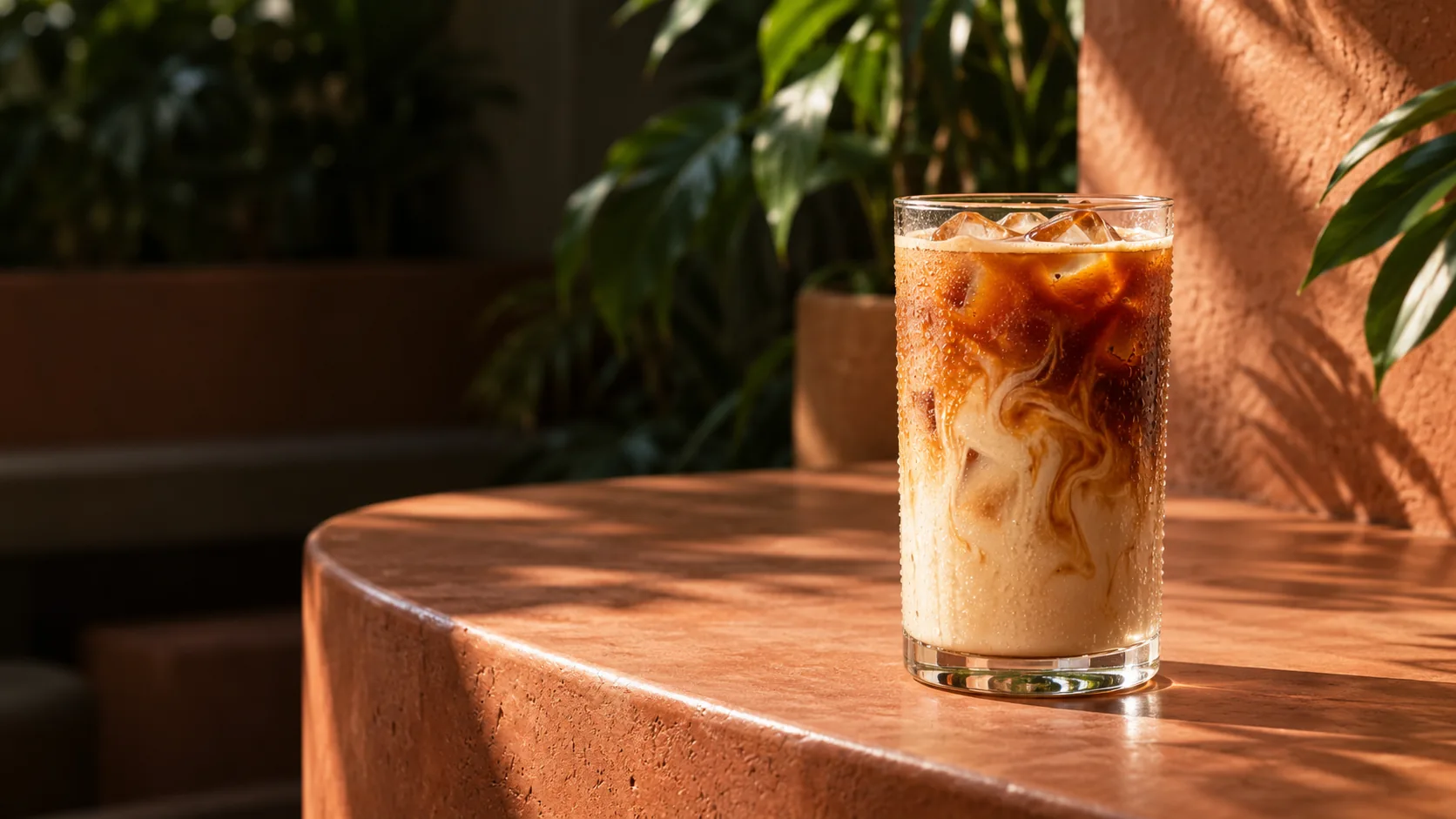
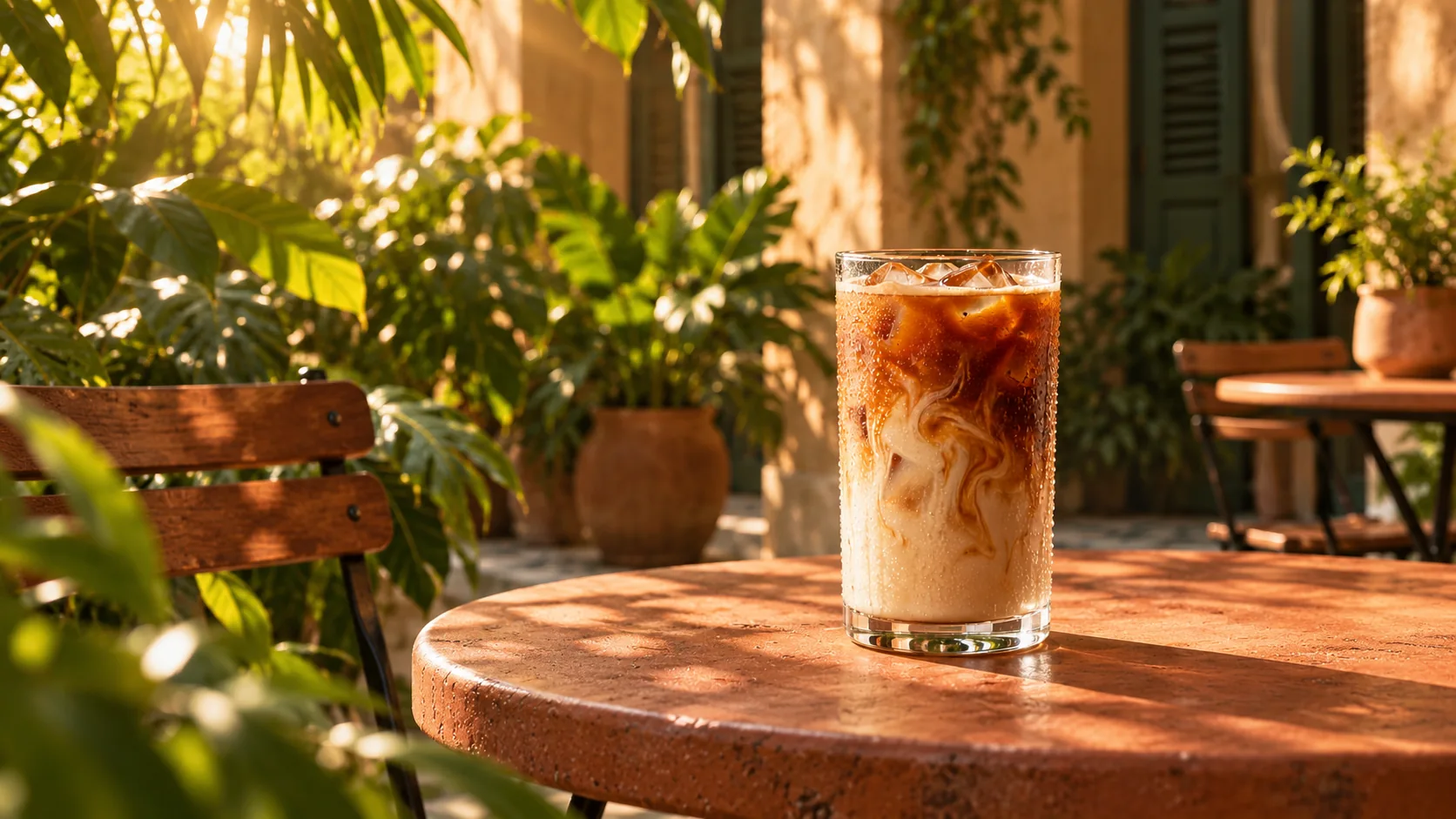
The example is a real Insvee Seedance 2.0 Mini Start/End Frame result. It used the displayed close coffee image as the start and the wider cafe image as the end, with an eight-second, 720p setting and audio on. The video preview is compressed; the original retains the returned audio.
Start/End Frame gives images explicit first-frame and optional last-frame roles. Text to Video starts from a written scene and may accept more general references. Choose the dedicated frame workflow when those endpoints are central to the shot.
YOUR IDEA. YOUR NEXT MOVE.
Start with Start/End Frame. Make something that feels like you.