
Skip to prompt
Create with H3 Max

MINIMAX AI VIDEO GENERATOR

MiniMax H3 Max

Control the start and the finish.

Bring a starting image, an ending image, or both. MiniMax H3 Max turns them into a scene, with faster generation than H3.

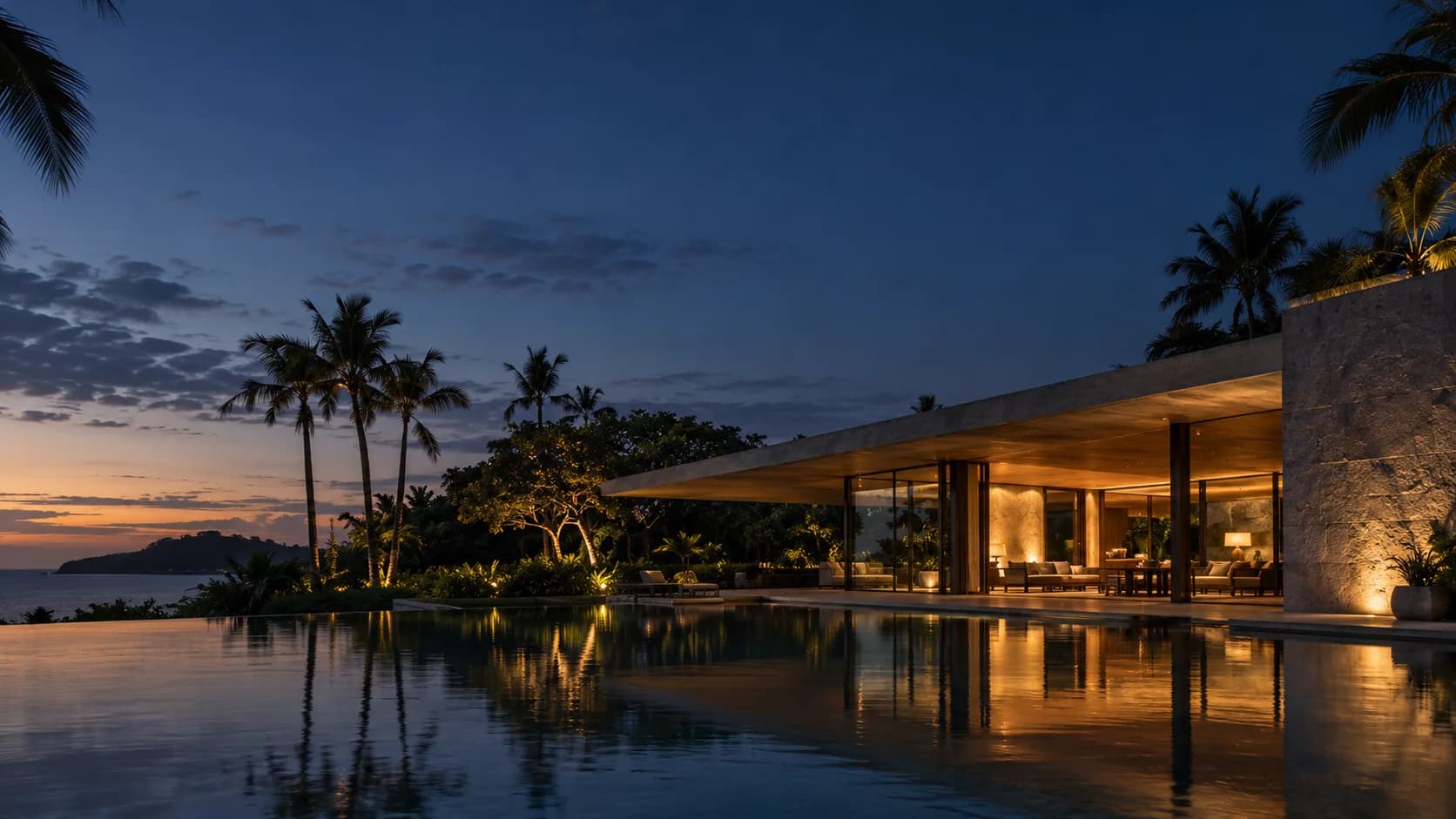
Creative reference artwork: tropical modern architecture and a reflecting pool at dusk
MiniMax H3 Max
Your prompt travels with you Review credits before generating
Text & image to videoTwo ways to start a scene
Flexible image controlStart image, end image, or both
480P / 768PChoose in Create
5-15 secondsShort scenes. New possibilities.

MINIMAX H3 MAX SHOWCASE

See the ideas.
Hear the scene.

Official H3 Max demonstrations, hosted by the model maker.

A product idea comes to lifeMiniMax official demo · MiniMax H3 MaxView source

Watch a racing-car concept move from sketch to a finished reveal.

Make a little scene steal the showMiniMax official demo · MiniMax H3 MaxView source

Explore character movement and a playful advertising concept.

YOUR BRIEF. YOUR DIRECTION.

Create with H3 Max.
Start with an idea.

Choose text to video or image to video. Your model stays selected as you enter Create.

01 / TEXT TO VIDEO

A clear brief. Room for a bold idea.

Build a MiniMax H3 Max scene around a strong subject, a deliberate camera move and a distinct mood. Use text to explore your idea, then move to image to video when you want to anchor the composition.

Write your scene
02 / IMAGE TO VIDEO

Give a still image
a moving story.

Use a start frame, an end frame, or both in Start/End Frame. Describe the action that leads into or away from your composition: a gradual reveal, a changing expression or a camera moving through the scene.

Animate your frames

A LITTLE CREATIVE DIRECTION

Make your next
scene feel like you.

Starting points for brands, filmmakers and creators. Use imagery you own or have permission to use.

01

Image-led campaigns

Give a still campaign concept a sense of movement. Begin with the composition you already like and direct the action.

02

Cinematic scene studies

Explore an atmosphere, a camera angle or a lighting idea in a short scene before building a larger story.

03

Social storytelling

Brief a focused visual moment for a social campaign, then choose the available format in Create.

MEET THE MINIMAX H3 FAMILY

Which MiniMax model
should you choose?

Start with the references, frame control and resolution your scene needs.

More detail. More control.

MiniMax H3

Make videos up to 2K. Use images, video clips and audio to show H3 what you want, or start with a written description.

Choose it when

You want more detail or need your own images, movement and sound to guide the video.

768P / 2K 4-15 seconds

Control the start and the finish.

MiniMax H3 Max

Choose how your video begins or ends. Max accepts a starting image, an ending image on its own, or both. It is also built for faster creation than H3.

Choose it when

You already know how the shot should begin or finish, especially when you only have an ending image.

480P / 768P 5-15 seconds

Super-fast video creation.

MiniMax H3 Max Turbo

Published benchmark: 1.54 seconds of processing for a 5-second 768P video, versus 2.46 seconds on Max. Try more ideas from words or a starting image. Total wait times vary.

Choose it when

You want to explore more ideas and compare different takes, with speed as your priority.

480P / 768P 5-15 seconds

MiniMax H3, MiniMax H3 Max, MiniMax H3 Max Turbo on Insvee
ModelOutputClip lengthFrame guidance
MiniMax H3768P / 2K4-15 secondsStart image + optional end image
MiniMax H3 MaxYou're here480P / 768P5-15 secondsStart image, end image, or both
MiniMax H3 Max Turbo480P / 768P5-15 secondsStart image + optional end image

H3 accepts mixed image, video and audio references. Max also accepts an ending image on its own. Speed benchmarks measure model processing; total wait times vary with the queue and settings. Compare current credit estimates in Create.

FROM FIRST IDEA TO NEXT TAKE

Your H3 Max video.
Three simple steps.

A focused workflow for creators in Malaysia and beyond.

Open H3 Max
  1. 01

    Describe the scene.

    Start with text or your frame images. Give the action and camera a clear direction.

  2. 02

    Make it yours.

    Choose the available settings and review your credit estimate in Create.

  3. 03

    Generate your next take.

    Review the result, refine your brief and download your chosen video.

CREATOR VOICES

Small teams.
Big ideas.

Illustrative reviews with fictional names, shown as sample content. These are not verified customer testimonials.

Swipe or drag to explore more reviews

THE NEXT SCENE IS YOURS

An idea today.
A world in motion.

MiniMax H3 Max

YOUR IDEAS. ROOM TO CREATE.

Find your creative pace.

Compare credits, storage and capacity. Choose your Insvee plan.

Loading current plans and regional pricing…

MiniMax H3 Max credits vary by workflow and settings; check your estimate in Create. Plan output figures are approximate across tools, subject to credits and access requirements.

Full pricing details

MINIMAX H3 MAX FAQ

Before your
first take.

What is MiniMax H3 Max?

MiniMax H3 Max is a video model you can use on Insvee to generate a scene from text or animate an opening image with an optional ending frame. This page opens the MiniMax H3 Max model directly in Create.

Can H3 Max turn an image into a video?

Yes. Open Start/End Frame with H3 Max and upload a start frame, an end frame, or both, then describe the motion. The default H3 Max integration linked here supports text and frames; for mixed image, video and audio references, explore H3.

What length and resolution does H3 Max support?

The current Insvee integration offers 5-15-second clips at 480P or 768P. Check the model's available settings and credit estimate in Create before you generate.

How much does MiniMax video generation cost on Insvee?

Your credit estimate appears in Create after you choose the model, workflow and settings. Compare current Insvee plans below. Opening Create or carrying a prompt from this page does not submit a paid generation.

Are the images on this page MiniMax video outputs?

The cinematic image is original creative reference artwork, not a MiniMax-generated video. Prompt ideas are starting briefs, not demonstrations of a guaranteed result.

Which model made the showcase videos?

Each showcase names the model used in its official source. The H3 Max page features H3 Max demonstrations; H3 family examples elsewhere do not verify H3 Max Turbo output. These videos are hosted by the model maker and were not generated on Insvee. Each version's current features and settings are shown in Create.

How do I write a useful AI video prompt?

Name the subject and setting, then describe one clear action, camera movement and lighting direction. For image to video, explain what should move and what should stay consistent with your frame. Review the result before publishing.

MINIMAX ON INSVEE

Let your idea
move you.

Create with MiniMax H3 Max

Essential cookies keep your account secure. Optional analytics and marketing cookies stay off until you choose.