
Skip to prompt
Create with Veo

GOOGLE AI VIDEO GENERATOR

Veo 3.1

MAIN FOCUSConsidered final takes

Choose Google Veo 3.1 for carefully directed campaign films and product stories. Shape the scene and native audio, with output up to 4K and up to three image references.

Compare Standard, Fast and Lite
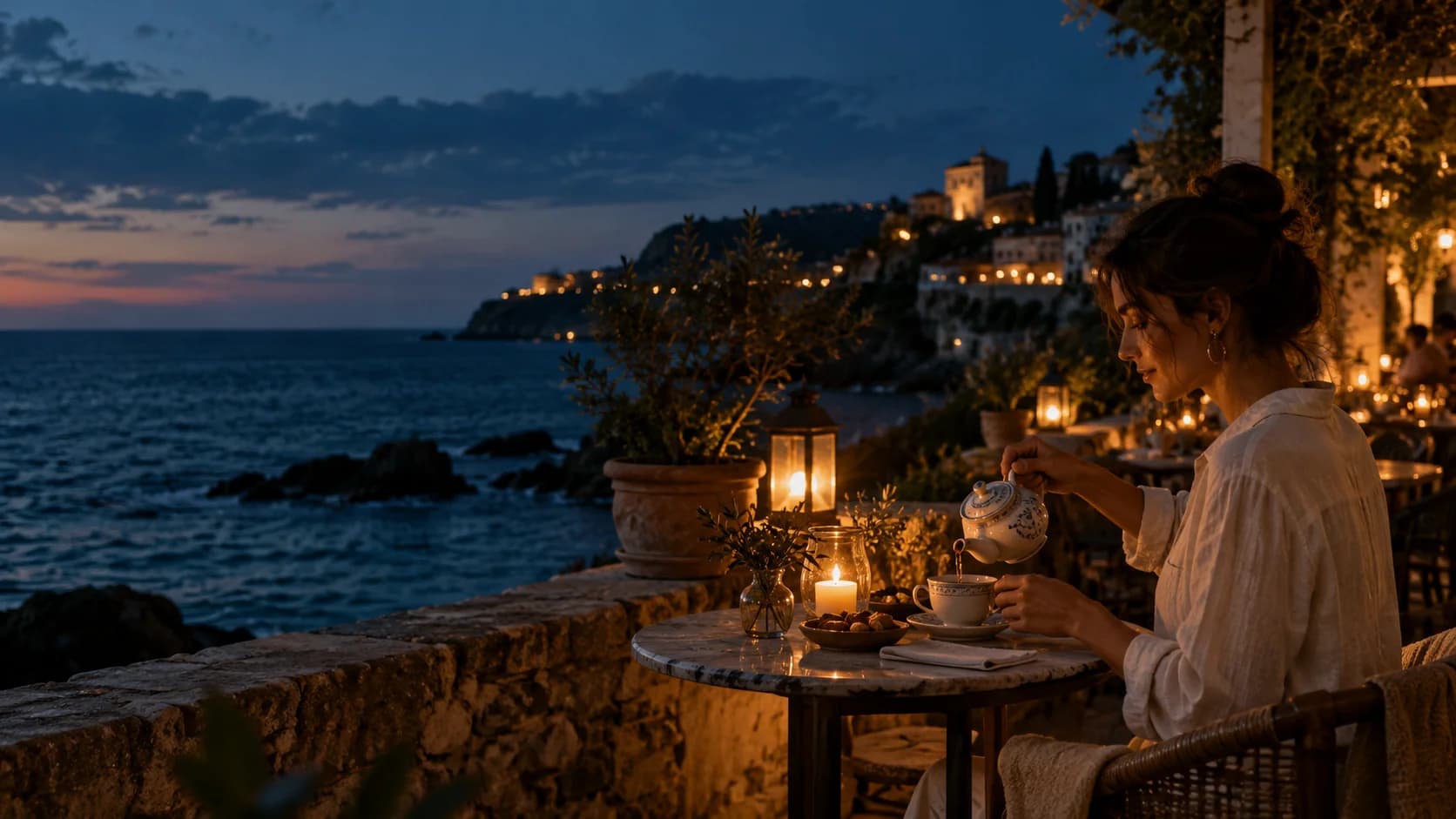
Creative reference: a woman pouring tea on a coastal cafe terrace at blue hour
Original creative concept · not a Veo output
Veo 3.1
Your prompt travels with you Review credits before generating
4, 6 or 8 secondsText-only clips at 720p
720p / 1080p / 4K8 seconds at higher resolutions
Up to 3 imagesText to Video references
Native audioPicture and sound in one generation

VEO IN MOTION

See the story
unfold.

Picture, movement and sound. Explore Google's official Veo 3.1 family demonstration.

See Veo 3.1 in motionGoogle official demo · Veo 3.1 familyView official source

WATCH THE POSSIBILITIES

Your direction.
A scene with feeling.

The standard model for deliberate scene development, campaign films and final takes.

Google's official Veo 3.1 family demonstrations. These are publisher examples, not verified Veo 3.1 outputs generated on Insvee.

Guide a scene with image referencesGoogle official demo · Veo 3.1 familyView official source

01 / TEXT TO VIDEO

Give your brand a scene worth remembering.

Build a product reveal or an atmospheric brand film around one clear action. Describe the lens, lighting and sound together, then refine your next take.

Write your scene
Give sound its own direction.

Describe the atmosphere, effects or dialogue alongside the visuals. Native audio is always on.

From first frame to final momentGoogle official demo · Veo 3.1 familyView official source

02 / IMAGE TO VIDEO

Give your idea a visual anchor.

Add up to three image references in Text to Video to guide a subject or visual direction. For a controlled opening and ending, choose the separate Start/End Frame workflow.

Animate your first frame Start image required. End image optional. Image-input clips are 8 seconds.

VEO 3.1 VS FAST VS LITE

Choose your
main priority.

Standard for considered final takes. Fast for quicker iteration. Lite for lower-cost creation.

YOU ARE HERE

Veo 3.1

MAIN FOCUSConsidered final takes

The standard model for deliberate scene development, campaign films and final takes.

Resolution
720p / 1080p / 4K
Text to Video references
Up to 3 images
Start / end frames
Supported
Native audio
Always on
Explore Veo 3.1

EXPLORE THE FAMILY

Veo 3.1 Fast

MAIN FOCUSFaster creative iteration

Test hooks and campaign variations faster, with native audio and image-reference options.

Resolution
720p / 1080p
Text to Video references
Up to 3 images
Start / end frames
Supported
Native audio
Always on
Discover Veo 3.1 Fast

EXPLORE THE FAMILY

Veo 3.1 Lite

MAIN FOCUSLower-cost video creation

Explore short clips with cost in mind. Keep native audio and frame animation; leave out 4K and multi-image references.

Resolution
720p / 1080p
Text to Video references
Text prompt only
Start / end frames
Supported
Native audio
Always on
Discover Veo 3.1 Lite

Standard and Fast share the same resolution and reference options; Fast prioritizes speed. Lite prioritizes cost with fewer options. Completion times and credits depend on settings and the queue. Text-only 720p: 4, 6 or 8 seconds; higher resolutions and image inputs: 8 seconds. All three support landscape and portrait. Check current estimates in Create.

FROM BRIEF TO FIRST TAKE

Create with Veo 3.1.
One scene at a time.

Product stories, social clips and campaign ideas start with a clear brief.

Open Veo 3.1
  1. 01

    Describe the moment.

    Choose a subject, setting, action and camera move. Add sound direction.

  2. 02

    Choose your starting point.

    Use Text to Video, or upload a start image in Start/End Frame. Pick the available duration and framing.

  3. 03

    Review. Generate. Refine.

    Check the current credit estimate, generate your clip and review the picture and audio together.

CREATOR VOICES

Small teams.
Big ideas.

Illustrative reviews with fictional names, shown as sample content. These are not verified customer testimonials.

Swipe or drag to explore more reviews

YOUR NEXT SCENE STARTS HERE

Make the idea
move.

Veo 3.1

YOUR IDEAS. ROOM TO CREATE.

Find your creative pace.

Compare credits, storage and capacity. Choose your Insvee plan.

Loading current plans and regional pricing…

Veo 3.1 credits vary by workflow and settings; check your estimate in Create. Plan output figures are approximate across tools, subject to credits and access requirements.

Full pricing details

VEO 3.1 FAQ

Before your
first take.

What is Veo 3.1?

Veo 3.1 is part of Google's Veo AI video model family. On Insvee, turn written prompts into short videos with native audio, or animate a start image through Start/End Frame.

How is Veo 3.1 different from the other Veo 3.1 models?

Veo 3.1 is the standard model in this family, with output up to 4K. Standard and Fast support up to three Text to Video image references on Insvee. Fast targets quicker 720p and 1080p iteration; Lite focuses on lower-cost creation without that multi-image reference mode.

Can Veo 3.1 generate audio and dialogue?

Yes. Native audio is generated with the video. Describe dialogue, sound effects and ambience in your prompt, alongside the scene and camera direction. Audio is always enabled for the current Veo integration; review the result for speech and sound accuracy.

Can I turn an image into a video with Veo 3.1?

Yes. Choose Start/End Frame to animate a required start image with an optional end image. Text to Video separately supports up to three reference images for subject guidance. Image-input requests use eight-second clips.

Which video lengths, resolutions and aspect ratios can I use?

Text-only 720p requests support 4, 6 or 8 seconds. 1080p and 4K requests and requests using images require 8 seconds. Choose landscape 16:9 or portrait 9:16. Create shows the current options for your selected workflow.

How much does Veo 3.1 cost on Insvee?

Credits depend on your selected model, workflow and settings. Open Create to see the current estimate, and compare live Insvee plans below. Carrying a prompt from this page into Create starts no generation and spends no credits.

How do I write a useful Veo video prompt?

Describe the subject and setting, one main action, camera movement, lighting and sound. Put exact dialogue in quotation marks when needed. Keep the action achievable within a short clip, then review each take before refining the next prompt.

Where do these Veo videos come from?

These are Google's official Veo 3.1 demonstrations, embedded from the publisher's YouTube videos. They show the model family rather than videos generated on Insvee. They are not verified Fast or Lite outputs. Each player links to the publisher's original video; the selected variant's supported settings remain listed on this page and in Create. The opening image is an original creative concept, not a Veo result.

IMAGINE THE PICTURE. DIRECT THE SOUND.

The next moment
is yours.

Create with Veo 3.1

Essential cookies keep your account secure. Optional analytics and marketing cookies stay off until you choose.