
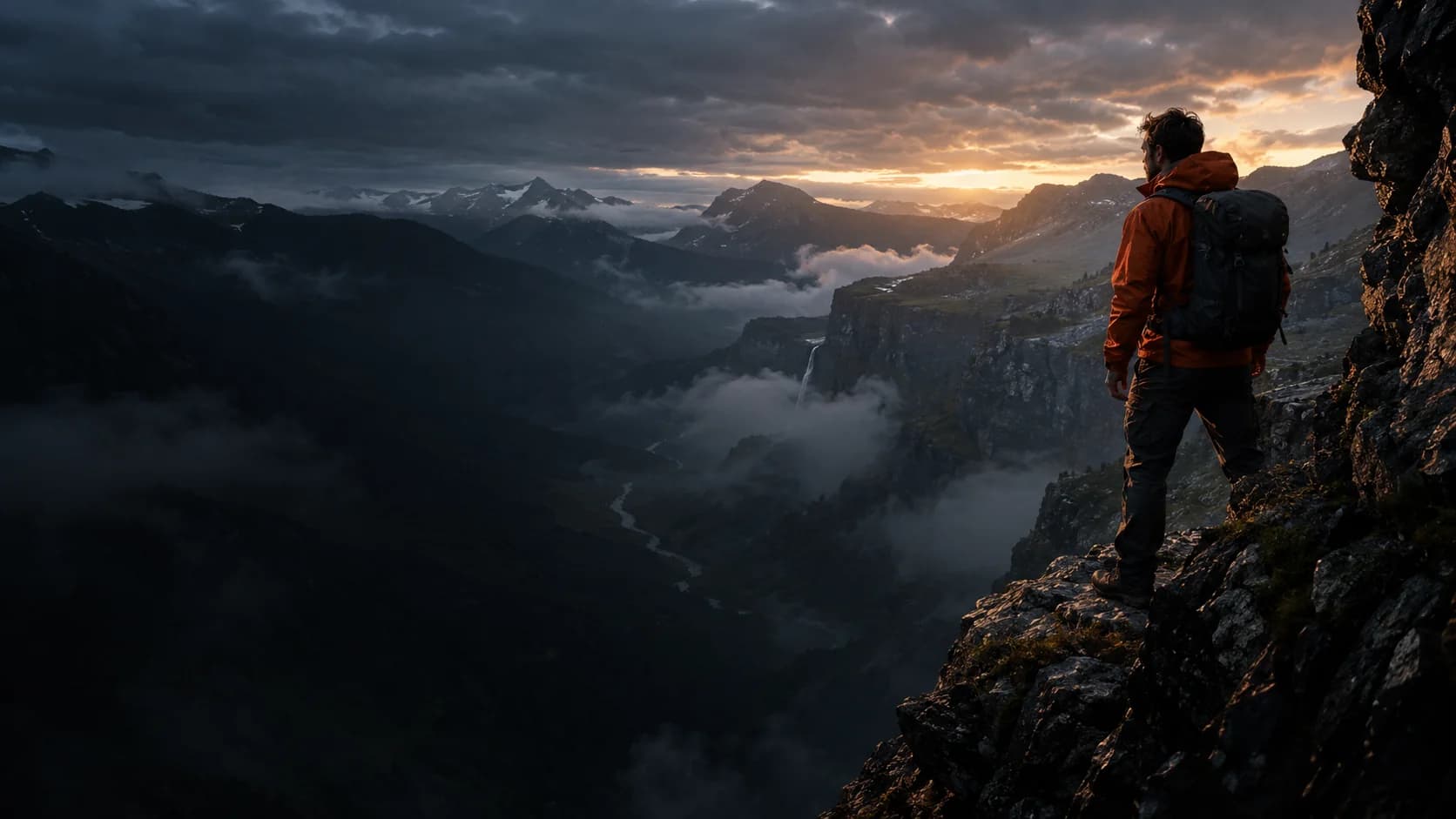
Start with the image you chose.
Use a clear first frame to establish your subject, composition and visual direction. Describe the movement you want instead of rebuilding every detail in words.
KLING AI · ON INSVEE
One image. A scene worth watching.
Turn your first frame into a cinematic AI video. Direct the camera, describe the action and guide the ending with Kling 3.0 on Insvee.
Bring a start image in Create. Add an optional end frame to guide the finish.
OFFICIAL KLING FILM · 01 / 02
A look at the wider Kling 3.0 family. Explore the Kling 3.0 workflows below.
KLING 3.0 IMAGE TO VIDEO
A product photograph, a portrait or a landscape can be your opening shot. Describe what changes, how the camera moves and where the moment ends.
Use a clear first frame to establish your subject, composition and visual direction. Describe the movement you want instead of rebuilding every detail in words.
Try a slow push-in, a gentle orbit or a wide reveal. An optional ending image gives the model a visual destination for the shot.
Choose optional native audio in Create. Describe the atmosphere, dialogue or effects alongside the action, then review the picture and sound together.
CHOOSE YOUR STARTING POINT
Open a supported Kling 3.0 workflow with the model already selected.
Upload your first image, describe the motion and optionally add an ending image. Open the Kling 3.0 image-to-video workspace.
FROM IDEA TO YOUR NEXT TAKE
Bring a product shot, portrait or scene you have permission to use.
Set the action, camera direction and optional ending frame in Create.
Choose duration, resolution and audio, check your credit estimate and generate your take.
THE KLING 3.0 FAMILY
Compare Kling 3.0, Omni and Turbo by the workflows available on Insvee.
Image to video with an optional ending frame and optional generated audio. Create 3–15-second clips at 720p or 1080p.
Create with Kling 3.0Text or image to video. Guide a scene with visual references; explore up to 4K without a video reference.
Explore Kling 3.0 OmniA first-image workflow for 3–15-second clips at 720p or 1080p. Direct the action with a motion prompt.
Explore Kling 3.0 TurboSettings and accepted inputs vary by workflow. Check the live options and credit estimate in Create.
CREATOR VOICES
Illustrative reviews with fictional names, shown as sample content. These are not verified customer testimonials.
YOUR NEXT SCENE STARTS HERE
YOUR IDEAS. ROOM TO CREATE.
Compare credits, storage and capacity. Choose your Insvee plan.
Loading current plans and regional pricing…
Kling 3.0 credits vary by workflow and settings; check your estimate in Create. Plan output figures are approximate across tools, subject to credits and access requirements.
Full pricing detailsKLING 3.0 FAQ
Kling 3.0 is part of Kling AI’s video generation family. On Insvee, this version opens the Start & End Frame workflow: provide a start image, describe the motion and optionally supply an end image.
Open Start & End Frame with Kling 3.0 selected, upload your first image and write a motion prompt. You can add an end frame to guide the final composition. Review the available settings and credits, then choose Generate.
This Kling 3.0 workspace requires a start image. Your prompt directs that image’s animation. If you want to begin with words alone, explore Kling 3.0 Omni’s Text to Video workflow.
No. A start image is required; the end image is optional. Use it when you have a particular final composition in mind. Generated motion and fidelity can vary, so review the result before using it.
The current Kling 3.0 workflow on Insvee supports whole-second durations from 3 to 15 seconds, 720p or 1080p resolution and optional native audio. Create shows the current settings and credit estimate before you generate.
On Insvee, Kling 3.0 offers image animation with an optional end frame and audio. Omni adds text-led generation and reference inputs. Turbo is a separate image-to-video option without an end-frame or audio control. Compare the three workflows on this page to choose your starting point.
The current credit estimate appears in Create after you choose your inputs and settings. The live Insvee plans below show included credits, storage and capacity. Entering a prompt here only prepares your workspace; generation starts when you choose Generate in Create.
The films are embedded from the official Kling AI YouTube channel and introduce the wider Kling 3.0 family. They are publisher demonstrations, not Insvee customer results or verified examples of the exact Omni or Turbo version. The opening photograph is original AI-created reference artwork, not a Kling output. Available Insvee workflows and settings are described separately on this page and in Create.
Essential cookies keep your account secure. Optional analytics and marketing cookies stay off until you choose.