
From a small frame
to a bigger canvas.
Choose a target above your source resolution: 720p, 1080p, 2K or 4K.
Choose your resolutionVIDEO UPSCALE ON INSVEE
Upscale your existing video to 1080p, 2K or 4K. Choose a frame rate and enhancement mode for your next export.
One video. No prompt. Review credits before starting.
A FINISH FOR YOUR FOOTAGE
Choose your video resolution, frame rate and enhancement mode in Create.

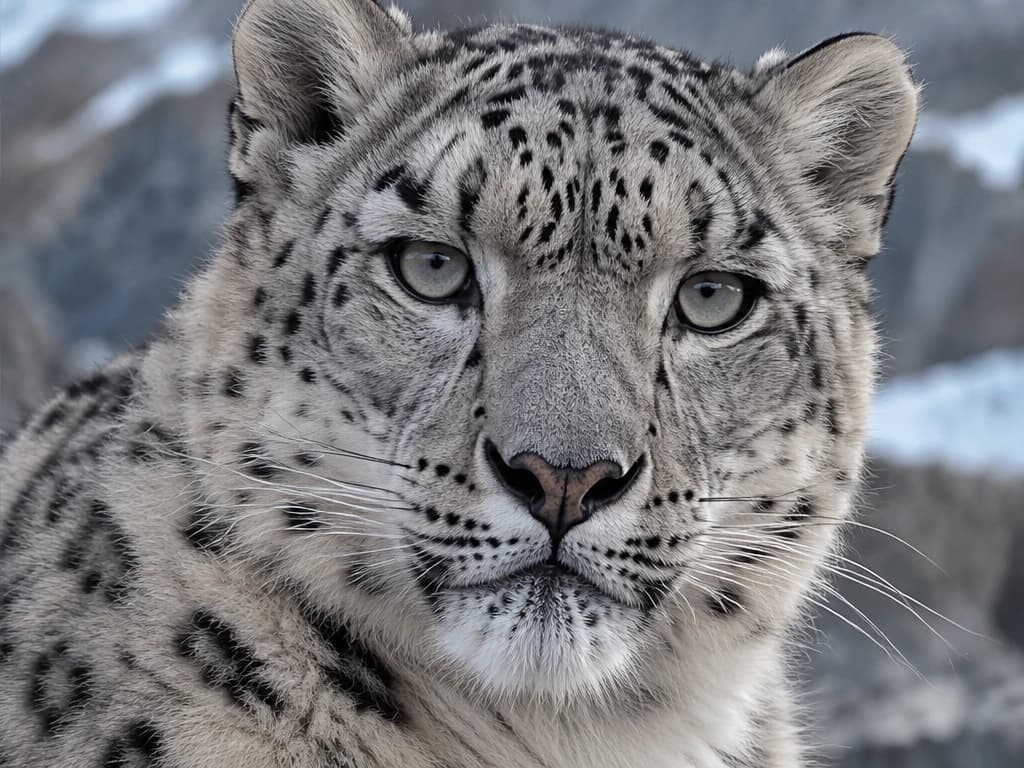
AI-generated illustration of soft versus sharp detail, not a Video Upscale result. Watch the real video comparison above to assess the tool.
Choose a target above your source resolution: 720p, 1080p, 2K or 4K.
Choose your resolutionChoose 30, 60 or 120 FPS, then review fast movement and camera pans in the finished clip.
Explore frame ratesCompare Fast, Standard and Pro modes with the current credit estimate. Inspect the final detail and texture at full size.
Explore enhancement modesDETAIL WORTH A CLOSER LOOK
Explore soft and sharp detail in product textures and fine scenery, then review the details that matter in your own footage.
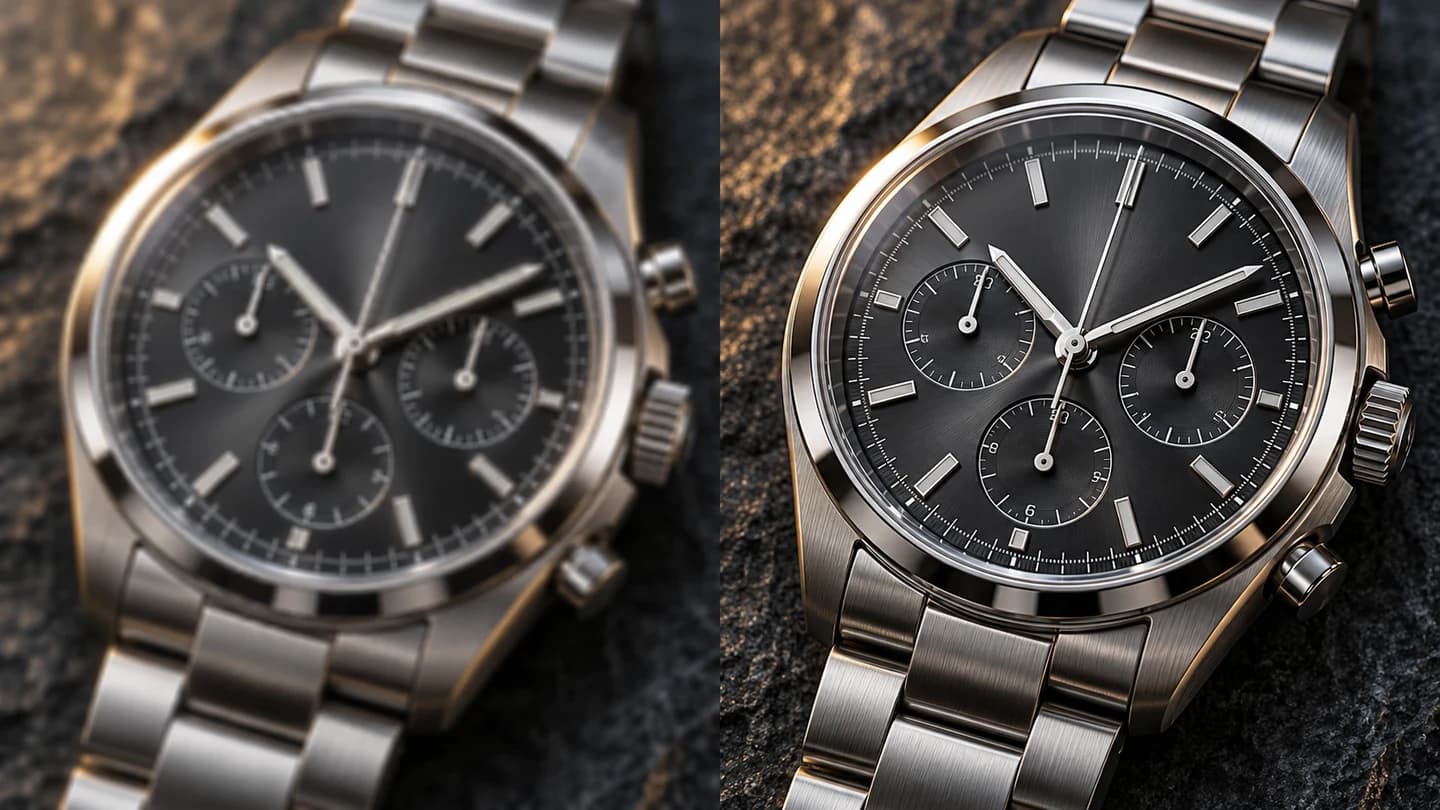
Look closely at fine edges, reflections and surface textures when reviewing your product footage.
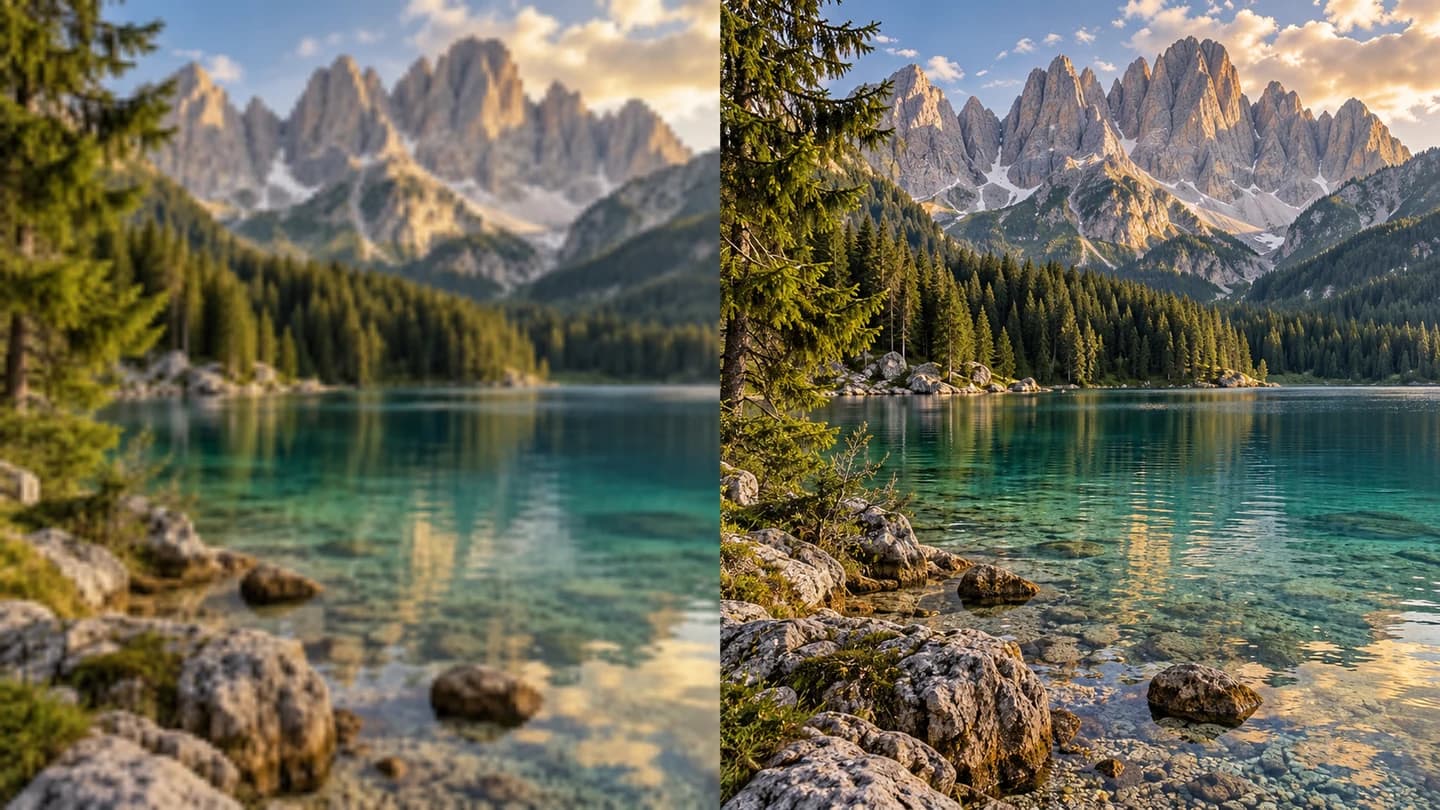
Inspect foliage, rock textures and water detail before delivering your landscape footage to a larger screen.
UPLOAD. CHOOSE. UPSCALE.
Upload original footage or an AI-generated video you have permission to use.
Choose a supported resolution above your source, then set the frame rate and enhancement mode.
Review credits and submit. The enhanced video saves as a new Project result, separate from your source.
YOUR IDEAS. ROOM TO CREATE.
Compare credits, storage and capacity. Choose your Insvee plan.
Loading current plans and regional pricing…
Video Upscale credits vary by workflow and settings; check your estimate in Create. Plan output figures are approximate across tools, subject to credits and access requirements.
Full pricing detailsCREATOR VOICES
Illustrative reviews with fictional names, shown as sample content. These are not verified customer testimonials.
YOUR NEXT FINISH STARTS HERE
AI VIDEO UPSCALING FAQ
An AI video upscaler creates a higher-resolution version of an existing clip. On Insvee, choose the resolution, frame rate and enhancement mode, then review credits before starting.
Yes. Output targets include 720p, 1080p, 2K and 4K. Choose a target higher than your source resolution; Create validates your file and shows the current options.
The current options are 30, 60 and 120 FPS. Resolution sets frame size; FPS sets frames per second. Review the finished motion, since a higher frame rate does not always improve the source.
Compare Fast, Standard and Pro with the current credit estimates for your video and output settings. Review faces, text, fine textures and motion in the result.
Yes. You can upload an AI-generated clip you have permission to use. You can also open Upscale from an eligible completed video in your Projects. The new upscaled result stays separate from its source.
No. Upload an existing video and choose the output settings. Processing starts only when you review the estimate and submit the upscale in Create.
The credit estimate depends on your source video and selected settings. Create shows the current estimate before submission; the live plan comparison shows available subscriptions.
The hero compares original 720p Seedance footage with its real Insvee Video Upscale result at 1080p, 30 FPS, using Standard enhancement. The comparison uses compressed previews; open Watch upscaled original to inspect the full-quality result. The snow leopard, product and landscape images are AI-generated illustrations of soft versus sharp detail, not Video Upscale results.
Results depend on the source. Heavy compression, motion blur and missing detail can limit the improvement, and enhancement can introduce artifacts. Keep your original and inspect the upscaled video at full size before using it in a final edit.
Essential cookies keep your account secure. Optional analytics and marketing cookies stay off until you choose.