
Precision Upscaling
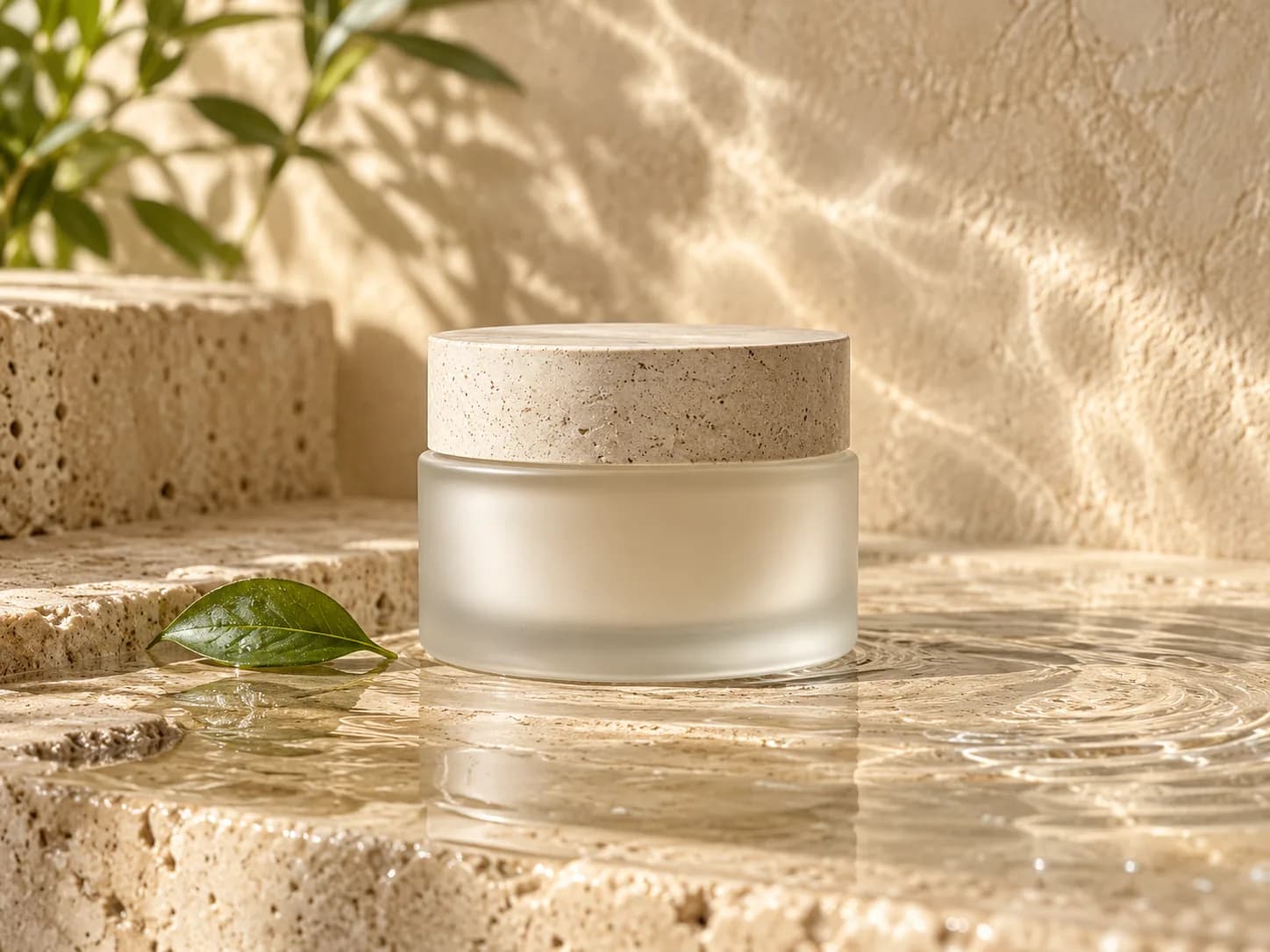
Keep existing detail sharp in clean photos, product shots, and graphics.
Enlarge a clean original, recover a blurry photo, or add fresh texture to AI art. Choose a Topaz mode based on what your image needs.
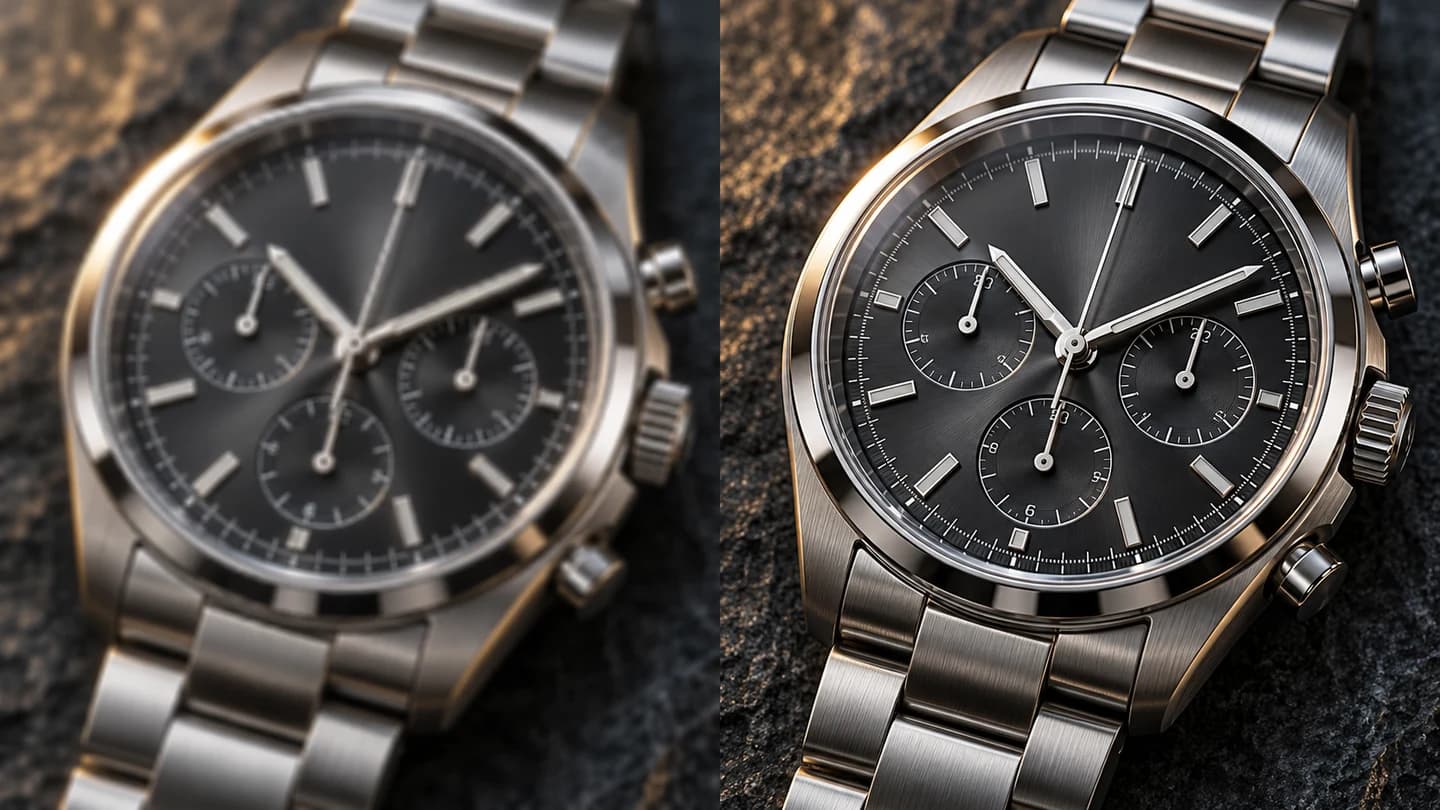
Insvee reference images. Before-and-after examples by Topaz Labs.
Keep existing detail sharp in clean photos, product shots, and graphics.
Rebuild missing detail in blurry, compressed, or older photos.
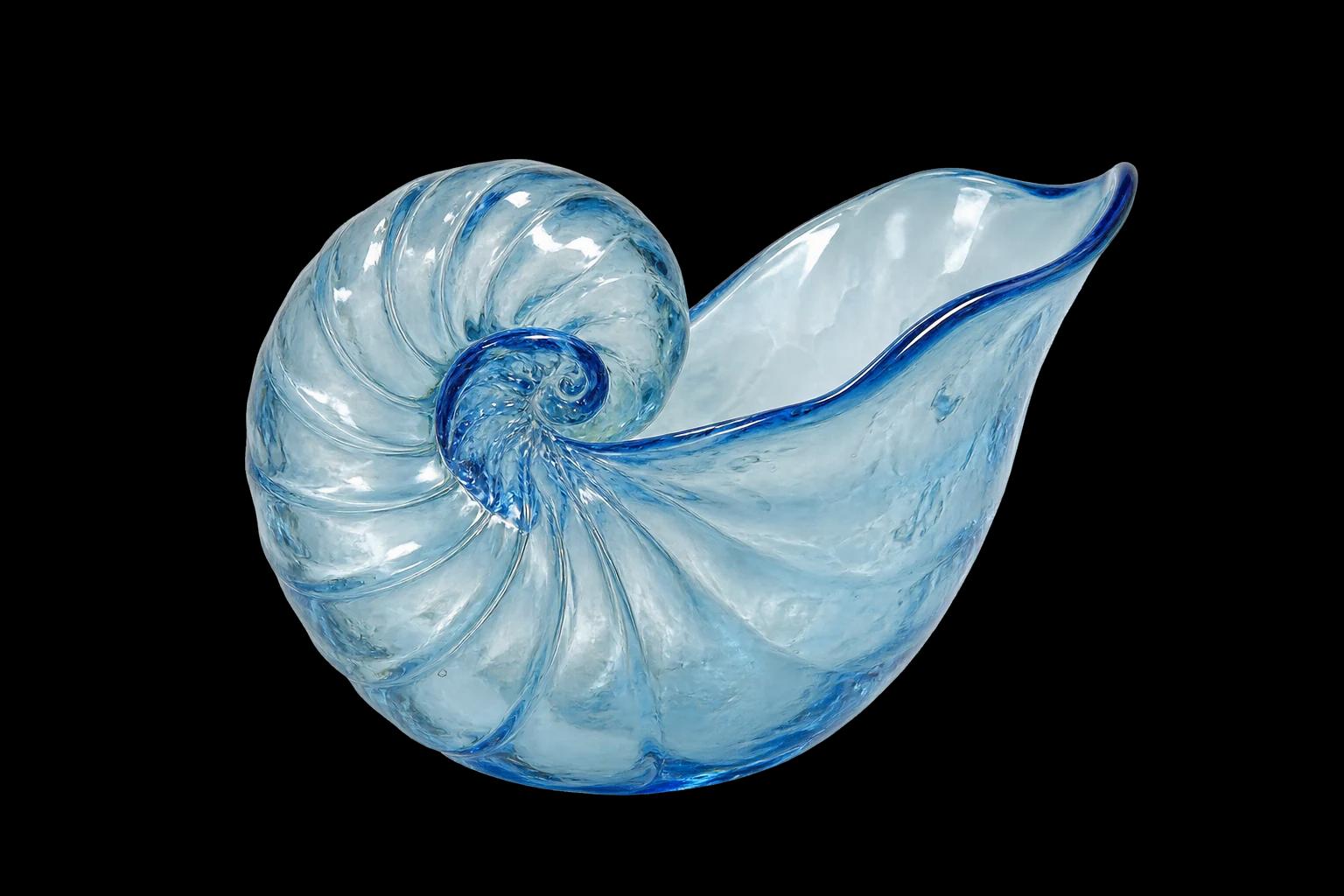
Add new texture and detail to AI art, illustrations, and renders.
YOUR IDEAS. ROOM TO CREATE.
Compare credits, storage and capacity. Choose your Insvee plan.
Loading current plans and regional pricing…
Topaz Image Upscale credits vary by workflow and settings; check your estimate in Create. Plan output figures are approximate across tools, subject to credits and access requirements.
Full pricing detailsCREATOR VOICES
Illustrative reviews with fictional names, shown as sample content. These are not verified customer testimonials.
Start with Precision and Standard 2 when the source is already clear. Try Generative with Wonder 4 when details are lost to blur or compression. Use Creative with Bloom 2 when adding new texture is part of the brief.
Wonder 4 and Recover 3 infer plausible detail from the pixels they have. Review reconstructed faces, lettering, and markings against your source before using the result.
Scale multiplies both width and height. A 256 × 256 px image reaches 4,096 × 4,096 px at 16×. Create offers the scales that fit your source within the output limits.
The quote in Create uses the selected mode, preset, and output dimensions. Review it after adding the source image and before submitting.
Essential cookies keep your account secure. Optional analytics and marketing cookies stay off until you choose.