
Text to Video
Start with a prompt. Add image or video references if you like.
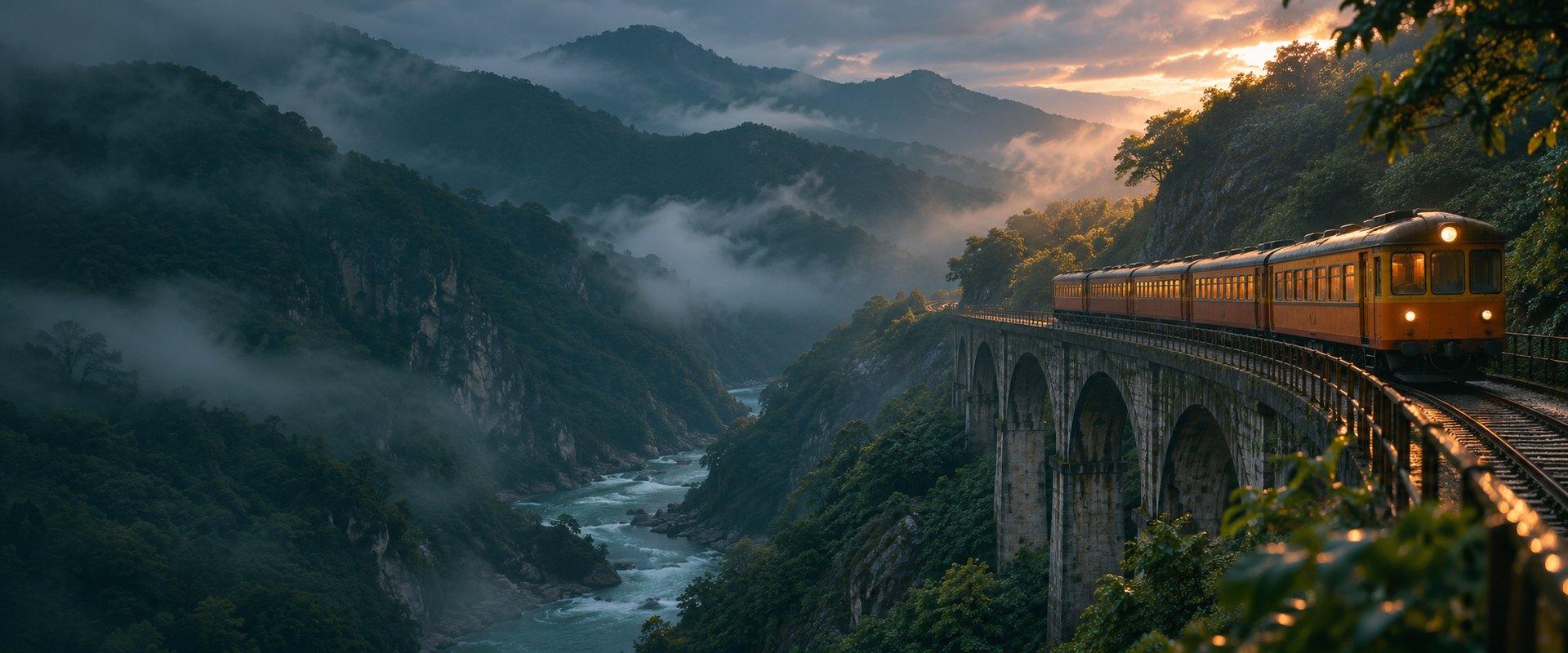
KLING AI · ON INSVEE
Direct the start, middle and end of your shot.
AI video up to 30 seconds at 1080p.
Optional image and video references can be added in Create.
KLING 4.0 CAPABILITIES
Choose a start frame, then add middle frames and an end frame as needed.
Multi-frame input · 3 keyframes
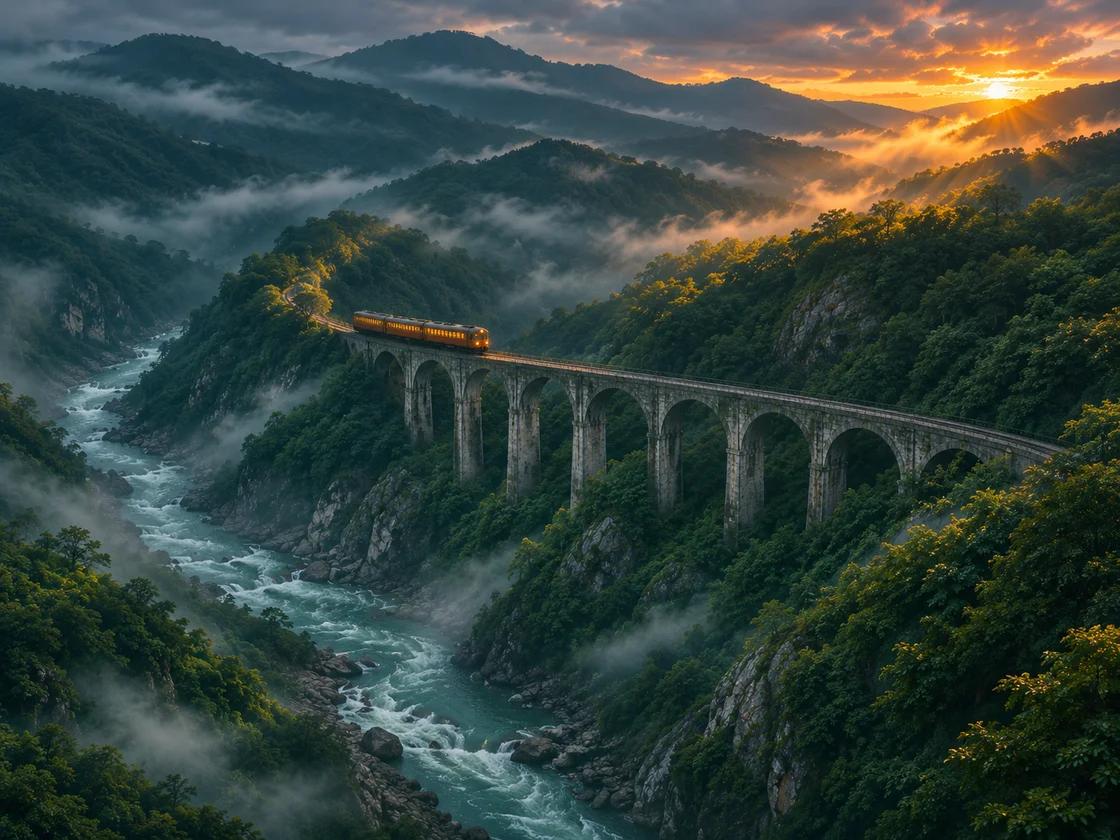
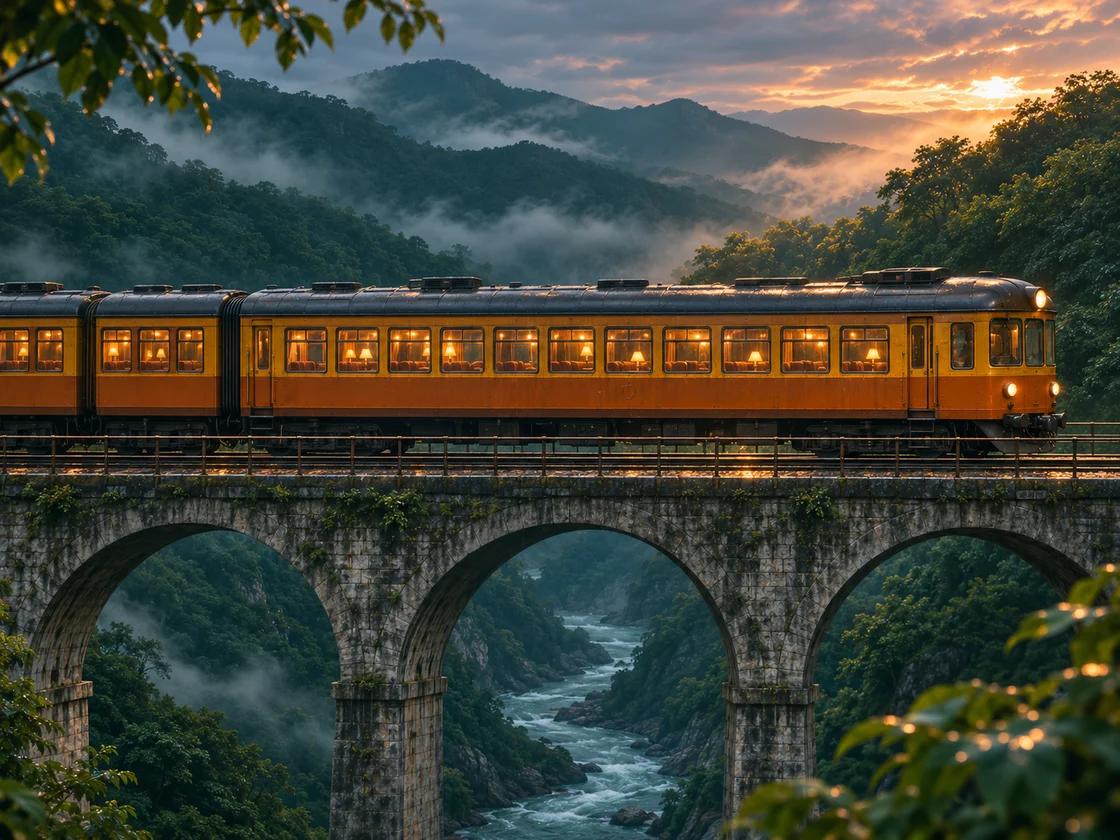
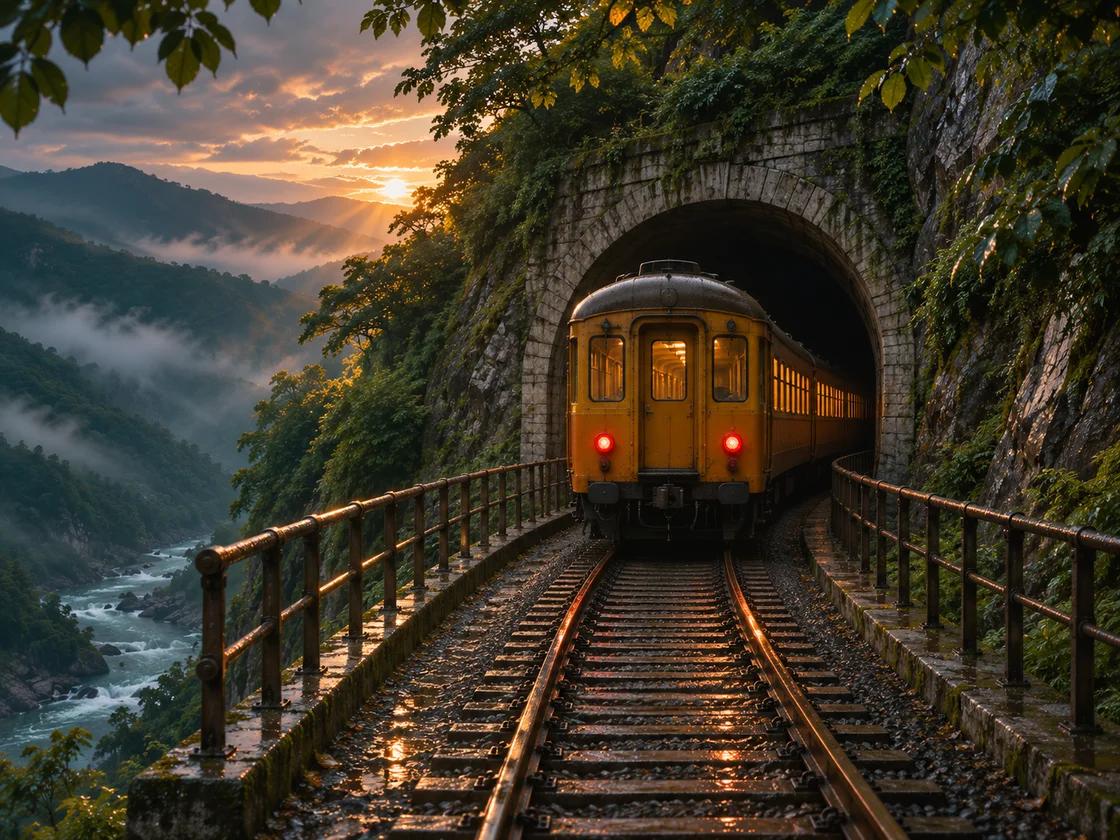
Generated with Kling 4.0
CHOOSE YOUR STARTING POINT
Open a supported Kling 4.0 workflow with the model already selected.
Start with a prompt. Add image or video references if you like.
Set the opening and guide later moments with keyframes.
Use a prompt to revise a whole clip or replace a selected section.
KLING 4.0 MODELS
Compare clip length, resolution and frame controls.
Generate 3–30-second AI videos up to 1080p with Kling 4.0 on Insvee. Use text, visual references or start, middle and end keyframes. Edit existing footage.
Create with Kling 4.0Create 3–20-second 720p AI videos with Kling 4.0 Flash on Insvee. Animate one opening image, generate from text and references, or edit an existing clip.
Explore Kling 4.0 FlashSettings and accepted inputs vary by workflow. Check the live options and credit estimate in Create.
CREATOR VOICES
Illustrative reviews with fictional names, shown as sample content. These are not verified customer testimonials.
YOUR NEXT SCENE STARTS HERE
YOUR IDEAS. ROOM TO CREATE.
Compare credits, storage and capacity. Choose your Insvee plan.
Loading current plans and regional pricing…
Kling 4.0 credits vary by workflow and settings; check your estimate in Create. Plan output figures are approximate across tools, subject to credits and access requirements.
Full pricing detailsKLING 4.0 FAQ
Kling 4.0 creates 3–30-second videos in whole-second steps, with 720p and 1080p output available in Create.
Choose 16:9, 9:16, 1:1, 21:9 or Auto in Create where the workflow offers an aspect ratio setting.
Yes. Text to Video accepts up to 10 image references and five video references alongside your prompt. If you add a video reference, you can choose to keep its original sound in Video settings.
Start & End Frame allows up to eight ordered middle frames. A 3-second clip can use four frames total, and a clip of nine seconds or more can use ten, including the start and any end frame.
Yes. Open Video Edit to upload an MP4 or MOV and describe what to change. Edit the whole clip or replace a selected section. You can add image references and choose to keep the source sound in Video settings.
Create shows your credit estimate based on your model, settings and references. You can review the estimate before you generate.
Essential cookies keep your account secure. Optional analytics and marketing cookies stay off until you choose.