
Animate a GIF
Select GIF in Image settings. Describe a mascot or product loop and add a reference if you have one.
GIF in CreateOPENAI AI IMAGE GENERATOR & EDITOR
Move fast from brief to image.
Explore campaign ideas, animate a mascot or edit a reference with OpenAI’s speed-focused GPT Image 2.6 model.


TEXT TO IMAGE
Choose an output format in Create, then adjust Quality and Complexity separately.
Select GIF in Image settings. Describe a mascot or product loop and add a reference if you have one.
GIF in Create Reference
 Cutout
Isolate a subject for a product listing, sticker or design. Turn on Transparent background in Image settings.
PNG in Create
Select SVG and describe a logo or graphic you can scale and edit.
SVG in Create02 / EDIT AN EXISTING IMAGE
Give Flare the source image and any details it needs to match. Describe the change and the parts of the scene to preserve.
THE OUTFIT REFERENCES
Pair the person's photo with the pieces you want them to wear. These are the clothing inputs from OpenAI's edit example.
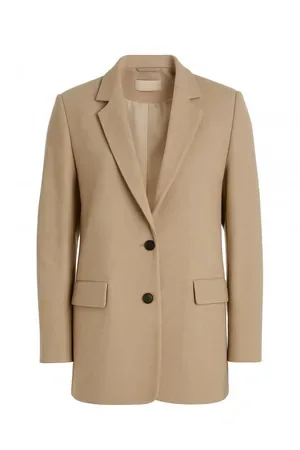
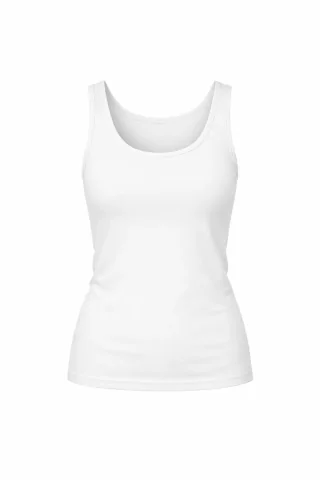
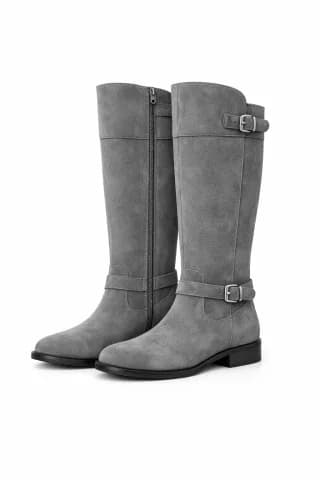
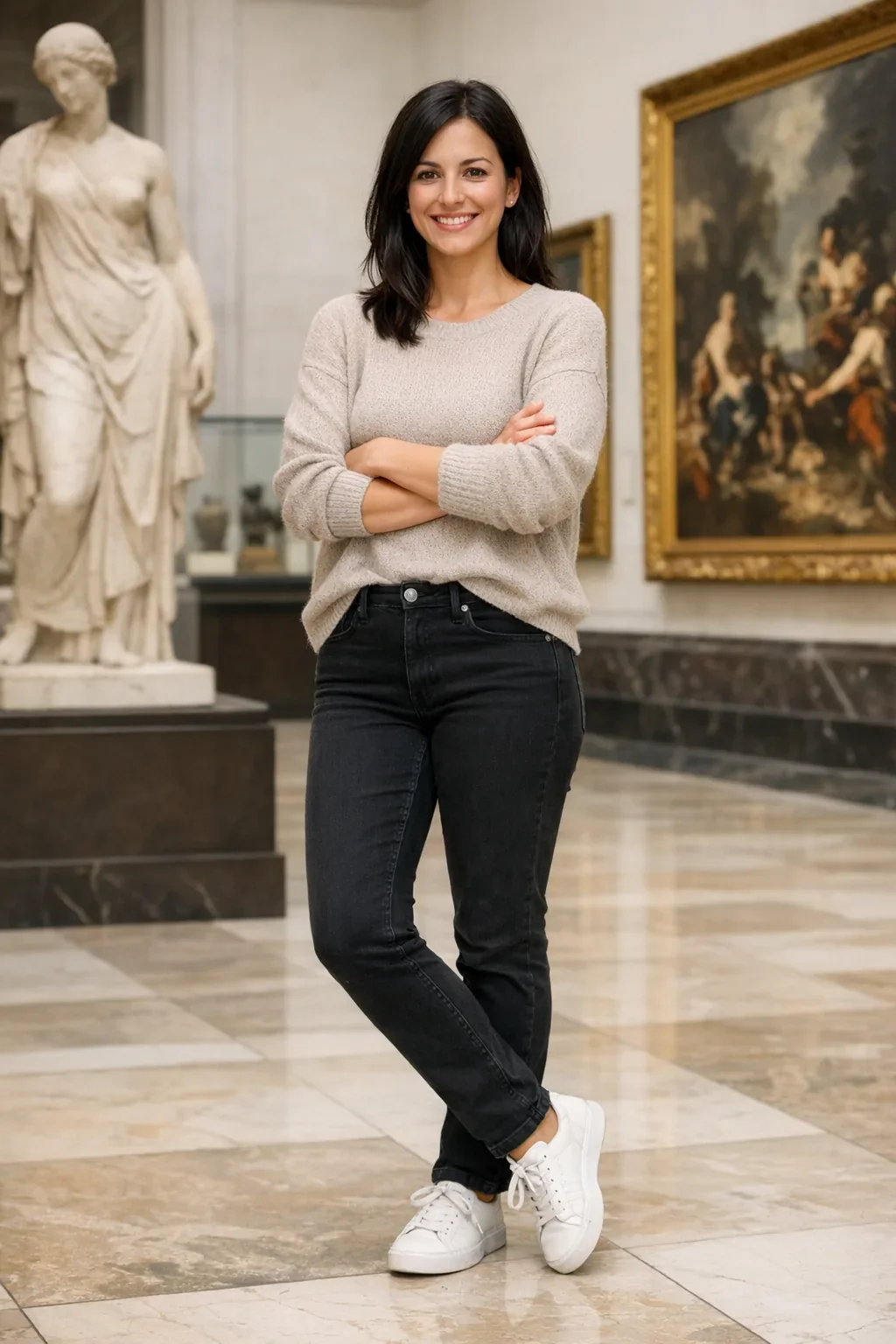 BEFORE / REFERENCEAFTER / GPT Image 2.6 Flare
ONE CAMPAIGN BRIEF
Compare how each model interprets the same streetwear brief in these OpenAI examples.

Refine complex compositions and reference-guided edits.
Discover GPT Image 2.6 SunburstYOUR IDEAS. ROOM TO CREATE.
Compare credits, storage and capacity. Choose your Insvee plan.
Loading current plans and regional pricing…
GPT Image 2.6 Flare credits vary by workflow and settings; check your estimate in Create. Plan output figures are approximate across tools, subject to credits and access requirements.
Full pricing detailsA LITTLE MORE CLARITY
GPT Image 2.6 Flare is an OpenAI image model for creating and editing images. On Insvee, use it for visual concepts, product imagery, portraits and reference-guided edits. Try several directions for a campaign, then refine the framing, lighting and copy of the one you want to keep.
Yes. Insvee's current integration supports text-only generation as well as generation with image references. Enter your brief, choose the available settings and review the credit estimate in Create.
Flare is designed for fast iteration. GPT Image 2.6 Sunburst is suited to detailed compositions and precise edits. Both 2.6 models add adjustable complexity, animated GIF and SVG output.
In Text to Image, select GIF for a 512 by 512 animation with nine frames or SVG for an editable vector graphic. Enter a prompt and optionally add an image reference to guide the result.
Open Image settings in Text to Image, select PNG and turn on Transparent background. Describe the subject you want to isolate, or add a reference for a product cutout.
Complexity controls how much the model plans before rendering. Choose Low, Medium or High. Quality controls the amount of detail in the rendered image.
Yes. Open Edit Image with this model, choose your source image and describe the changes. Add supporting references when useful. State which subject details, colors or composition should remain, then review the result; preservation is not guaranteed.
Create shows the current model-supported resolution, framing and quality options. Availability depends on the selected model and workflow. Check the displayed settings and credit estimate before generating.
Credits depend on the selected model and settings. Compare live Insvee plans below and check your current generation estimate in Create. Sending a prompt from this page into Create starts no generation and spends no credits.
The examples are from OpenAI. Captions identify the model for each result, including the Sunburst animation, and label reference images separately.
Describe the subject, intended use, composition, lighting and style. Put any required words in quotation marks. For edits, say what to change and what to preserve. Inspect text, faces and fine details before using the final image.
CREATOR VOICES
Illustrative reviews with fictional names, shown as sample content. These are not verified customer testimonials.
MAKE SPACE FOR YOUR NEXT IDEA
Your brief, ready in the right workspace.
Essential cookies keep your account secure. Optional analytics and marketing cookies stay off until you choose.