

01
Start from a template
Choose a supported image or video template with a visual direction you want to adapt.
Loading AI tools
Essential cookies keep your account secure. Optional analytics and marketing cookies stay off until you choose.
Loading AI tool
Loading Smart Clone
Skip to Smart CloneA TEMPLATE YOU LIKE. A BRIEF OF YOUR OWN.
Choose an available template, add your replacement images or brief, and prepare an adapted starting point for a new image or video.
Review settings and credits before you start.
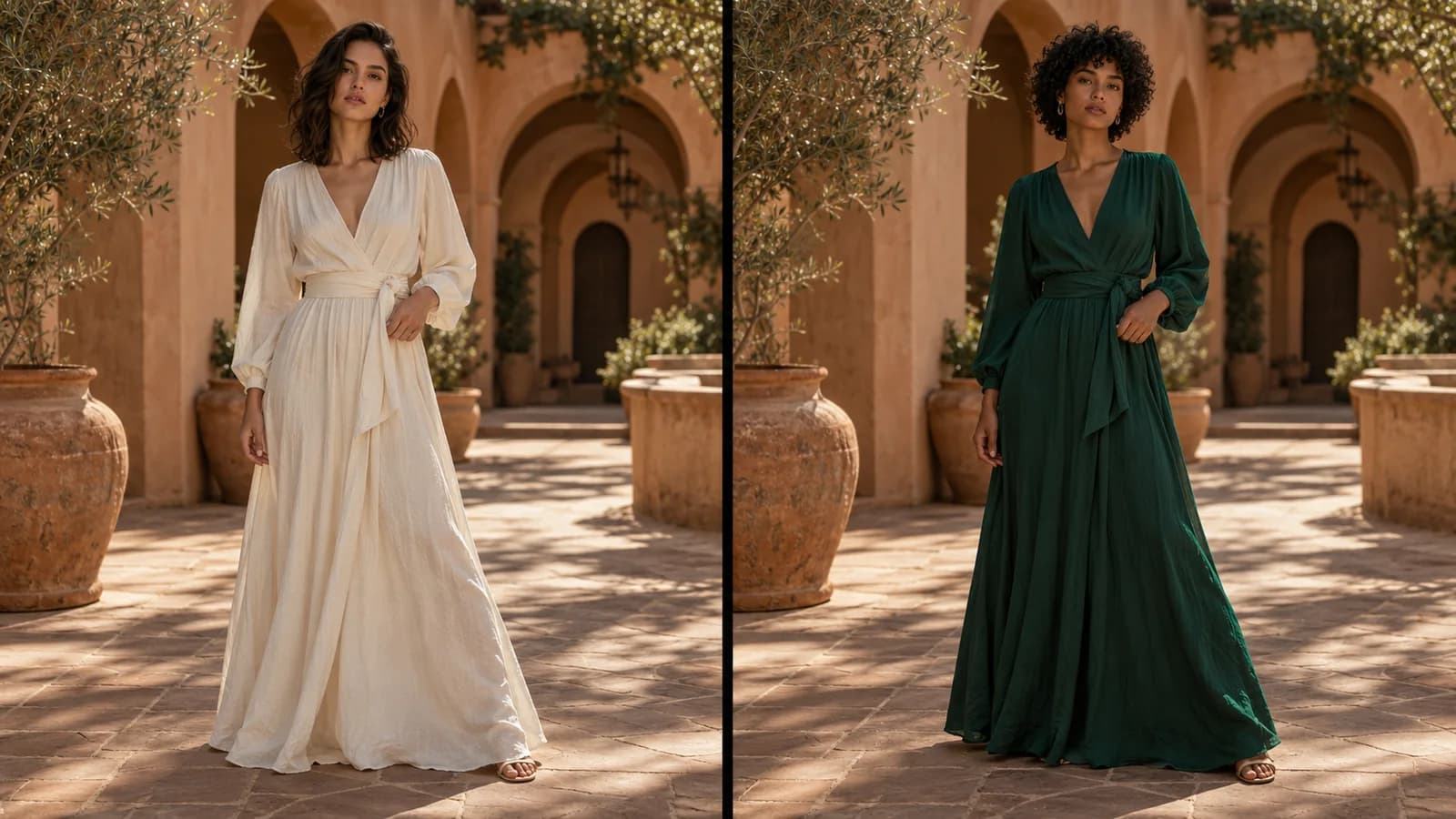
A TEMPLATE YOU LIKE. A BRIEF OF YOUR OWN.
Choose an available template, add your replacement images or brief, and prepare an adapted starting point for a new image or video.
Review settings and credits before you start.
YOUR IDEA, MADE VISIBLE
Adapt image or video templates with replacement images, a text brief or both. Smart Clone prepares a new prompt while keeping the template's original tool, model and settings.
Adapt a template with your own images and instructions, then review the prepared workflow.
Original illustration; not a verified tool result.MORE INTENTION. LESS FRICTION.
Choose a supported image or video template with a visual direction you want to adapt.
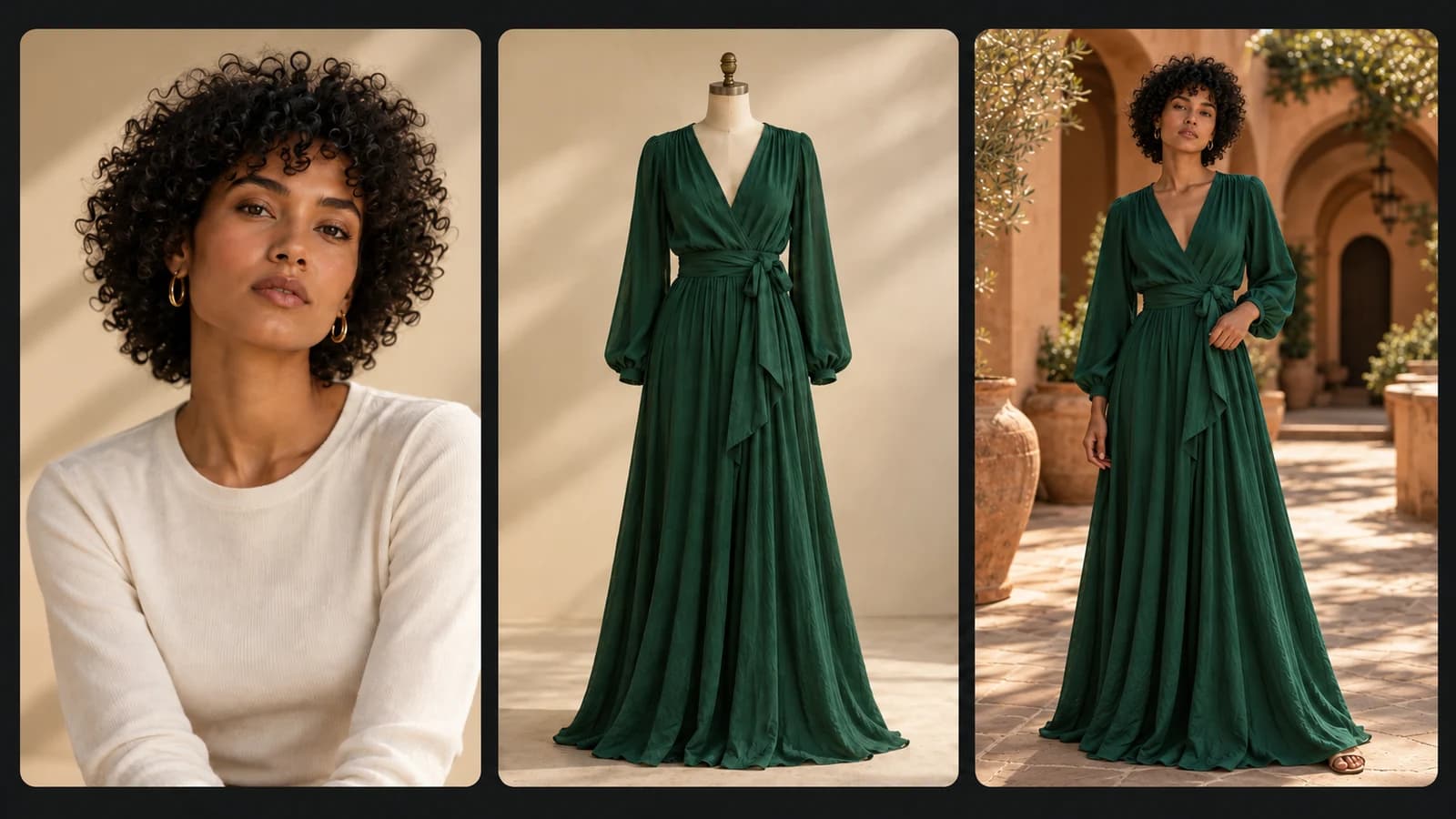
Your brief Use @Image1 wearing @Image2. Keep the courtyard and warm light.
Use replacement images, a text instruction or both. Your images retain their selected order.
Keep the template's tool, model and settings with an adapted prompt and your replacement references.
Choose a video template in Smart Clone, or open a supported image template in Create Image and select its Smart Clone action.
Provide at least one replacement image or a text instruction. Use both when the adaptation needs extra visual context.
Let Smart Clone prepare the adapted prompt, then check the destination workflow, references, settings and generation estimate.
MAKE IT PART OF YOUR PROCESS
Use a permitted product image and a short brief to adapt a compatible campaign template.
Explore a supported visual direction with your own replacement imagery and styling instruction.
Build a new starting point from a reusable template while keeping its configured media workflow.
YOUR IDEAS. ROOM TO CREATE.
Compare credits, storage and capacity. Choose your Insvee plan.
Loading current plans and regional pricing…
Smart Clone credits vary by workflow and settings; check your estimate in Create. Plan output figures are approximate across tools, subject to credits and access requirements.
Full pricing detailsCREATOR VOICES
Illustrative reviews with fictional names, shown as sample content. These are not verified customer testimonials.
SMART CLONE FAQ
Smart Clone prepares an adapted prompt and media-generation setup from a supported template and your replacement brief. It is a template-adaptation helper rather than a separate image or video generation model.
Provide at least one replacement image or a text prompt; either is sufficient, and you can use both. Images must meet the selected template's upload requirements.
Yes. For video, open the dedicated Smart Clone workspace and choose a video template. For images, open a supported image template preview in Create Image and choose Smart Clone when offered. The selected template determines the media tool, model and saved settings used after adaptation.
The adapted workflow uses your newly supplied replacement images in their selected order. Smart Clone does not copy the template's original source references into your adapted generation.
Smart Clone first prepares the adapted prompt and applies the media setup. Review the resulting form, references and current credit estimate before you explicitly submit the image or video generation.
The adapted prompt and retained setup provide a starting point, while new references and generation can produce differences. The fashion comparison on this page is a labelled workflow illustration, not a verified cloned output or a promise of identical composition.
YOUR IDEA. YOUR NEXT MOVE.
Start with Smart Clone. Make something that feels like you.
Explore Smart Clone