
Text to Video
Generate 3 to 15 seconds from text, with optional image and video references.
Create a videoGOOGLE AI VIDEO GENERATOR
Direct a 15-second shot.
Create AI video with sound from a prompt, guided by your images or short clips.
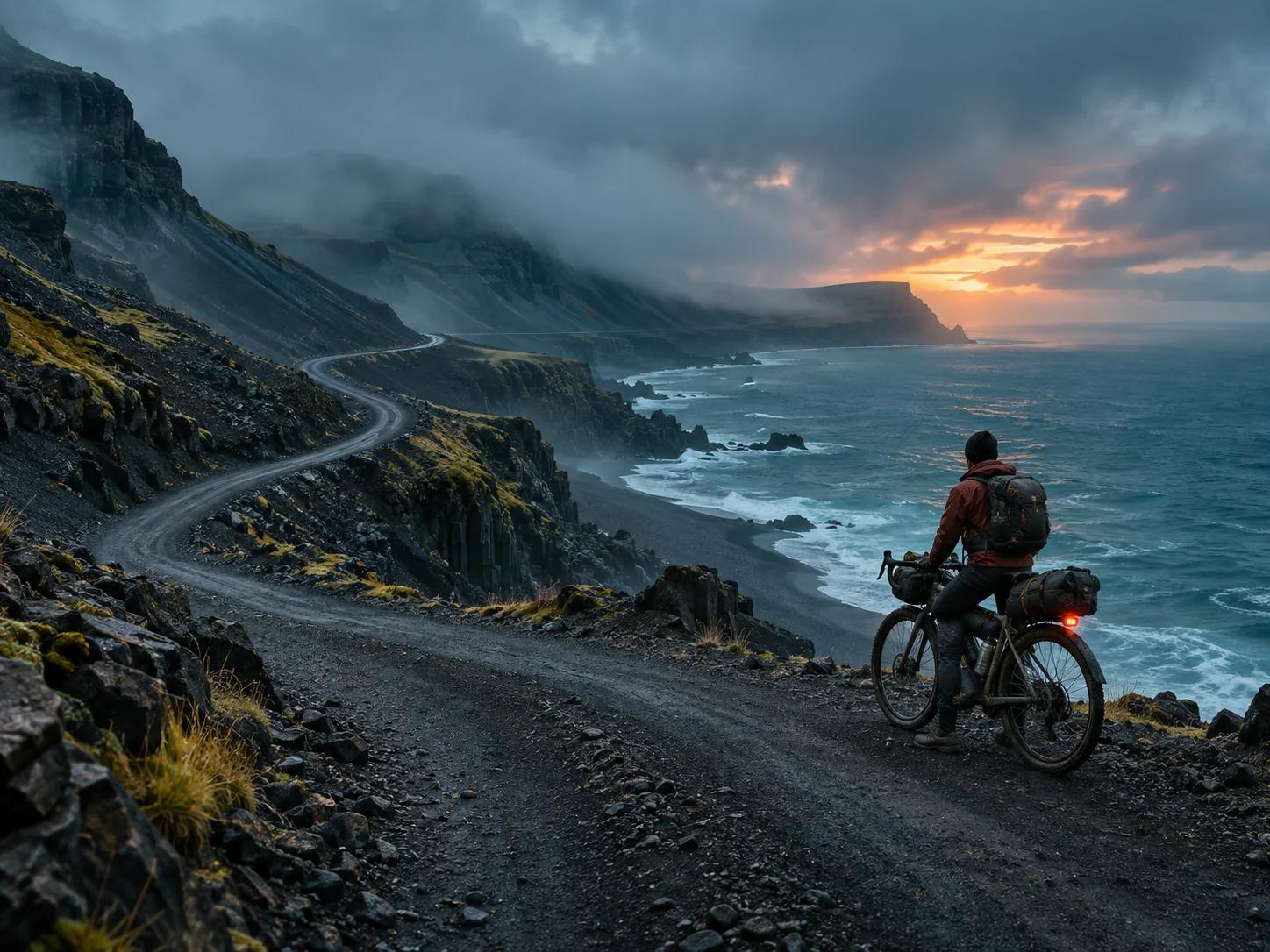
START / END FRAME
Give Omni the first and last frame. Then direct the camera between them.
 First frame
 Last frame
EXAMPLE PROMPT
Follow the cyclist around the bend, then rise in one continuous shot to reveal the coast.
Original reference artwork shown as example inputs.
Watch Google’s launch demosWORKFLOWS
Generate 3 to 15 seconds from text, with optional image and video references.
Create a videoSet two keyframes and describe how the shot moves between them.
Connect two framesUpload a clip up to 15 seconds long and describe what to change.
Edit a clipAdd 3 to 10 seconds to an existing clip.
Extend a clipYOUR IDEAS. ROOM TO CREATE.
Compare credits, storage and capacity. Choose your Insvee plan.
Loading current plans and regional pricing…
Gemini Omni 1.2 Flash credits vary by workflow and settings; check your estimate in Create. Plan output figures are approximate across tools, subject to credits and access requirements.
Full pricing detailsCREATOR VOICES
Illustrative reviews with fictional names, shown as sample content. These are not verified customer testimonials.
GEMINI OMNI 1.2 FLASH FAQ
Google’s video model generates clips with native audio, creates transitions between frames, and edits or extends existing video from a written instruction.
Text to Video supports whole-second lengths from 3 to 15 seconds. Start/End Frame and the added portion of Video Extend support 3 to 10 seconds. Insvee accepts source clips up to 15 seconds for Video Edit and Video Extend.
Text to Video accepts up to six images. Use up to three video references for 3 to 10 second output, or one for 11 to 15 second output. Each reference clip is up to three seconds. Reference-video sound and standalone audio uploads are not supported.
New generations support 16:9 or 9:16, with 360p and 720p generation and upscaled 1080p and 4K output. Review the controls for each workflow in Create.
Open the workflow and review the live credit estimate for your inputs and settings before you generate. Opening Create or transferring a prompt does not spend credits.
GEMINI OMNI ON INSVEE
Essential cookies keep your account secure. Optional analytics and marketing cookies stay off until you choose.